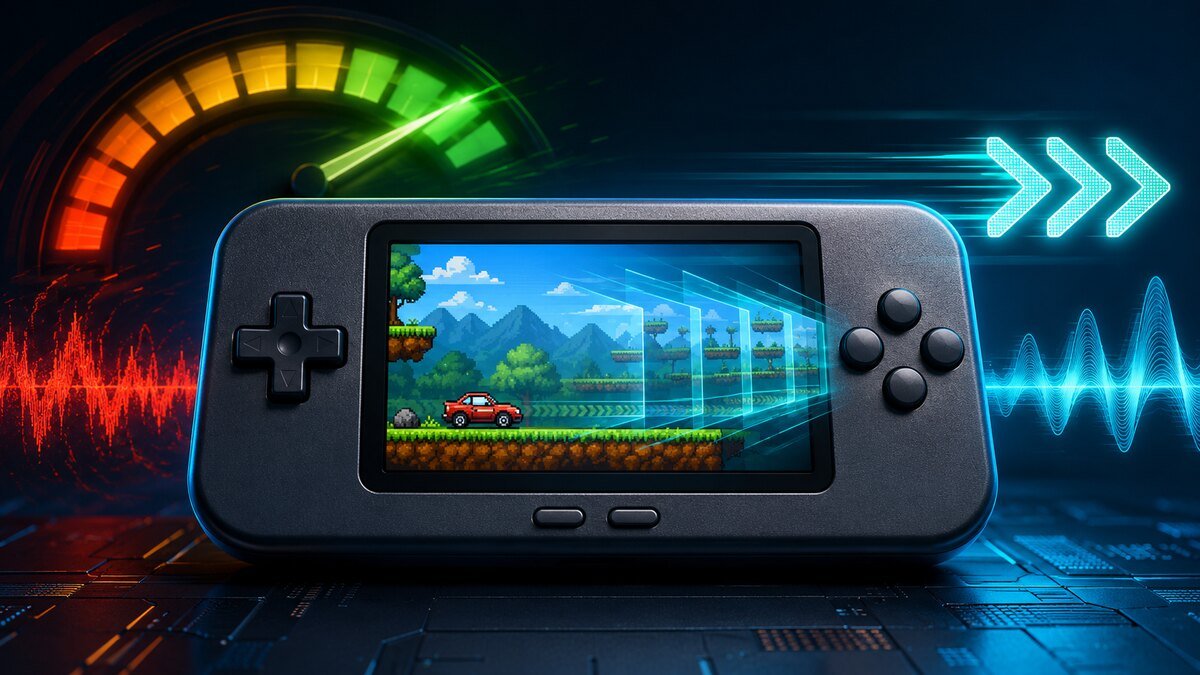

If RetroArch fast-forward is not working, the problem is usually a missing hotkey, an active speed limit, a demanding emulator core, or a performance setting that prevents the device from running faster than normal. Fast-forward does not create extra power: it only lets RetroArch run the game as quickly as the hardware and core can manage.
This guide shows how to map both fast-forward controls, set a useful speed limit, diagnose a game that stays at normal speed, and fix choppy video or crackling audio. Follow the steps in order and test with the same game after each change.
Quick checklist: why fast-forward does not work
- Fast-Forward Toggle and Fast-Forward Hold are not mapped.
- You are not holding the Hotkey Enable button.
- Maximum Run Speed is set too close to normal speed.
- The core already uses nearly all available CPU or GPU power.
- Shaders, run-ahead, rewind, or enhanced resolution reduce performance.
- VSync, audio synchronization, or frame-throttle settings are limiting speed.
- A core or game override replaces the global configuration.
1. Map the correct fast-forward hotkey
Open Settings → Input → Hotkeys. RetroArch provides two different fast-forward controls:
- Fast-Forward Toggle: press once to turn fast-forward on and press again to return to normal speed.
- Fast-Forward Hold: the game speeds up only while you hold the button.
Choose one that fits your handheld. Hold is safer for short sections, while Toggle is more comfortable for long battles, dialogue, or grinding. Avoid assigning both controls to the same physical button.
If you need help planning combinations, see our RetroArch hotkeys guide.
2. Check the Hotkey Enable modifier
When Hotkey Enable is assigned, other hotkeys work only while that modifier is held. A common handheld setup uses Select as Hotkey Enable and a shoulder button for Fast-Forward Hold. Pressing the shoulder button alone may simply send its normal game input.
Hold Hotkey Enable, then press the fast-forward control. If it works, the mapping was correct and the missing modifier caused the confusion. Check for conflicts with menu toggle, save state, load state, rewind, and controller shortcuts built into custom firmware.
3. Set Maximum Run Speed above 1x
Open Settings → Frame Throttle and find Maximum Run Speed or the fast-forward ratio. A value near 1x will make fast-forward look almost identical to normal play. Set a practical cap such as 2x, 3x, or 4x and test again.
An unlimited setting allows RetroArch to run as fast as possible, but it can produce unstable pacing, unpleasant audio, higher power use, and extra heat. A moderate limit is usually better on battery-powered handhelds.
The official configuration uses fastforward_ratio for this limit. If the menu option is missing in custom firmware, advanced users can inspect retroarch.cfg, but should back it up before editing.
4. Understand the hardware limit
Fast-forward works by asking the emulator to calculate more game frames every second. If a demanding core already runs at the edge of full speed, there is no unused processing capacity available. The fast-forward icon may appear even though the game barely accelerates.
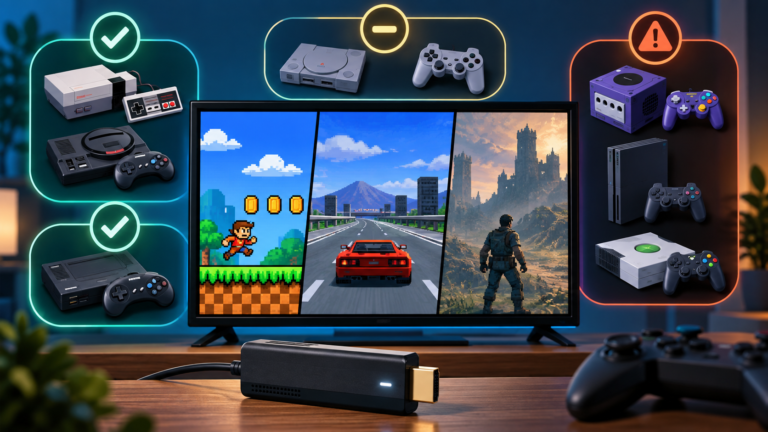
Test an 8-bit or 16-bit game with a lightweight core. If that game reaches 3x or 4x but a Nintendo 64, Saturn, Dreamcast, or PlayStation game stays near 1x, the hotkey is functioning. The demanding core is the limit.
Different cores for the same system can have very different speed and accuracy requirements. Our guide to RetroArch cores and settings explains why switching cores can change performance.
5. Disable features that consume performance
Temporarily disable the following features and retest:
- Heavy CRT or handheld shaders.
- Run-ahead or preemptive frames.
- Rewind support.
- Enhanced internal resolution.
- High-accuracy core options.
- Video filters and recording.
Shaders can be inexpensive on a desktop but expensive on a small handheld GPU. Start with no shader, then restore a lighter preset from our guide to the best RetroArch shaders and their performance costs.
Rewind continuously records state data while the game runs. If fast-forward improves after disabling it, use rewind only on lightweight systems. Our RetroArch rewind troubleshooting guide explains the performance tradeoff.
6. Fix choppy fast-forward video
Fast-forward is not designed to look as smooth as normal 60 fps gameplay at every speed. RetroArch may display uneven frame pacing while the core generates frames as quickly as possible. However, severe hitching often means the device is repeatedly reaching and missing the selected speed cap.
Lower Maximum Run Speed from unlimited to 2x or 3x. Disable demanding features, close background apps, and check whether the handheld is in a low-power mode. If the device becomes hot and slows down after several minutes, thermal throttling may also be reducing performance.
7. Fix audio crackling or distorted sound
During fast-forward, game audio is normally accelerated along with emulation. At high speed it may sound sharp, broken, or unintelligible. RetroArch does not generally keep all game audio at normal speed while gameplay advances faster.
Reduce the speed cap first. A stable 2x speed often sounds better than an unlimited rate that changes constantly. Test a different audio driver where available, restore a reasonable audio latency, and avoid combining aggressive fast-forward with performance-heavy shaders or latency reduction.
If audio also crackles at normal speed, fast-forward is not the root cause. Use our guide to fix RetroArch audio crackling, latency, and synchronization.
8. Check VSync and synchronization settings
Frame-throttle behavior depends on video and audio synchronization. Normally RetroArch relaxes the usual speed limit during fast-forward, but unusual driver combinations or custom firmware settings can still interfere.
Return VSync, audio sync, and frame-throttle options to sensible defaults before experimenting. Change only one setting at a time. Disabling synchronization globally may make fast-forward faster while causing tearing, unstable sound, and poor normal-speed pacing.
9. Check core and game overrides
A core override or game override can replace global hotkeys and frame-throttle settings whenever specific content loads. If fast-forward works in one system but not another, open the Quick Menu and inspect active overrides.
Save a new override only when you intentionally want a different speed limit for that core. If settings disappear after restarting, read how to fix RetroArch configuration files and read-only storage.
10. Do not confuse fast-forward with Turbo Fire
Fast-forward accelerates the entire emulation session. Turbo Fire repeatedly presses one game button while the game remains at normal speed. Mapping Turbo will not make walking, dialogue, loading, or animations run faster.
When testing, look for the fast-forward notification and watch whether the whole game accelerates. If only one action button repeats rapidly, you configured Turbo rather than Fast-Forward.
Recommended handheld setup
- Use Fast-Forward Hold for short sections.
- Use a Hotkey Enable modifier to prevent accidental activation.
- Start with a 2x or 3x speed limit.
- Disable rewind and heavy shaders on demanding cores.
- Accept a lower maximum speed on accurate cores.
- Use normal in-game saves before long fast-forward sessions.
Final troubleshooting order
- Map Fast-Forward Hold or Toggle.
- Hold the Hotkey Enable modifier.
- Set Maximum Run Speed above 1x.
- Test a lightweight game and core.
- Disable shaders, rewind, run-ahead, and enhanced resolution.
- Lower an unstable unlimited speed to 2x or 3x.
- Check overrides and saved configuration.
When the hotkey works but the game does not speed up, the hardware or core is usually the real limit. A stable moderate speed is more useful than an unlimited setting that creates heat, crackling audio, and erratic pacing.