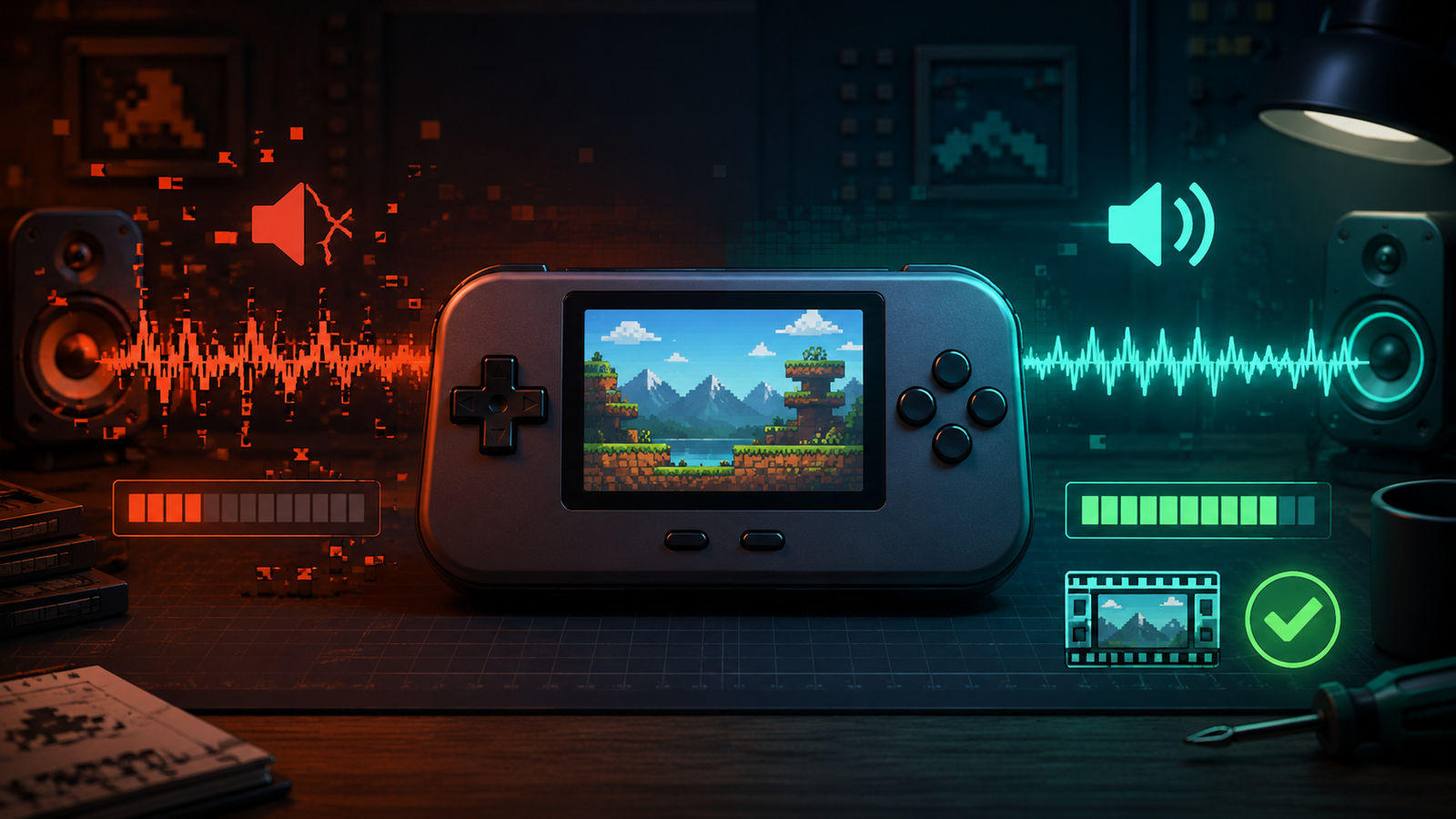

If RetroArch audio is crackling, popping, or cutting out during gameplay, the speakers are not always the problem. Audio glitches often happen when the emulator cannot maintain full speed, the sound buffer is too small, or the display and audio settings are not synchronized.
This guide explains how to identify the cause, adjust audio latency, check synchronization and refresh rates, reduce demanding visual effects, and choose settings that work on retro handhelds and desktop computers.
Why RetroArch Audio Crackles or Stutters
RetroArch continuously coordinates the game core, display refresh rate, and audio output. If one part cannot keep up, the sound buffer may run low before the next audio data arrives. The result can be static, popping, robotic sound, brief silence, or gameplay that slows down together with the music.
Typical causes include audio latency set too low, disabled audio synchronization, an incorrect display refresh rate, heavy shaders, run-ahead features, an unsuitable video driver, or a demanding emulator core.
Start with one game and one core. Change a single setting, test again, and keep notes so you can identify which adjustment actually fixes the problem.
1. Check Whether the Game Is Running at Full Speed
Crackling audio frequently appears when a game is running below its intended speed. Watch for slow animation, uneven movement, delayed controls, or music that changes pitch. These symptoms suggest a performance problem rather than defective speakers.
- Test a simpler game from the same console.
- Try a less demanding system, such as an older cartridge-based console.
- Close other applications and background downloads.
- Connect the device to power if battery-saving mode reduces performance.
- Test another compatible core when one is available.
If only one advanced system struggles, your device may not have enough processing headroom for that specific core or its current settings.
2. Enable Audio Synchronization
Open Settings > Audio > Synchronization and make sure Synchronization is enabled. The exact menu wording can vary between RetroArch versions and menu drivers.
Audio synchronization helps keep sound aligned with the game and video timing. When it is disabled, a timing mismatch can produce noticeable static or popping. After enabling it, restart the game and listen for improvement.
If a setting keeps reverting after you close RetroArch, check our guide to fixing RetroArch settings that do not save before continuing.
3. Increase Audio Latency Instead of Lowering It
A smaller audio buffer can reduce delay, but setting it too low makes crackling more likely. RetroArch needs enough buffered sound to handle normal variations in processing and display timing.
- Open Settings > Latency.
- Locate Audio Latency.
- If you previously lowered it, return to a conservative setting.
- Test the commonly documented default of approximately 64 ms when that value is available.
- If the audio still breaks up, increase the value gradually and test the same game again.
Higher latency can add a small delay, but clean, stable sound is usually a better starting point than an aggressively low setting. Once the game runs smoothly, you can experiment carefully with lower values.
4. Verify VSync and the Display Refresh Rate
Audio and video timing are connected. If RetroArch uses the wrong display refresh rate or incompatible synchronization settings, sound can crackle even when the game appears almost smooth.
Check Settings > Video > Output for the display refresh-rate options. Compare the configured value with the monitor or handheld screen. A typical display may run near 60 Hz, but the exact value can differ slightly.
Also review the video synchronization options and confirm that VSync is configured appropriately for your display. If your monitor supports variable refresh rate, avoid combining unrelated synchronization methods without understanding their interaction.
For broader display-quality issues, our article on why retro games look blurry on modern screens explains related video settings and common image problems.
5. Disable Heavy Shaders and Visual Effects
CRT shaders, high internal resolutions, advanced filters, and decorative overlays can increase the workload substantially. If your device cannot maintain the required frame rate, audio often starts breaking up first.
- Temporarily disable the active shader.
- Reduce internal rendering resolution if the core provides that option.
- Turn off demanding visual filters.
- Close screen-recording software and unnecessary overlays.
- Test a simpler shader only after confirming that clean audio has returned.
This matters especially on budget retro handhelds, older laptops, and devices running more demanding 3D consoles.
6. Reduce Run-Ahead, Frame Delay, and Other Latency Features
RetroArch includes advanced options that reduce input lag, but some require extra CPU or GPU capacity. When configured too aggressively, they can cause inconsistent frame pacing and audio underruns.
Under Settings > Latency, temporarily reduce or disable Run-Ahead to Reduce Latency, Frame Delay, Automatic Frame Delay, and Run Pre-Emptive Frames if those options appear in your version.
Restart the game after changing each setting. If the crackling disappears, re-enable features one at a time until you find a stable compromise between responsiveness and performance.
7. Test Another Video Driver or Core
A video driver can affect audio indirectly because it controls how smoothly frames are presented. Depending on the platform, available choices may include Vulkan, OpenGL, or a Direct3D-based driver.
- Write down your current video driver.
- Open Settings > Drivers > Video.
- Select another supported driver.
- Restart RetroArch completely.
- Load the same game and compare performance.
Not every core supports every driver. If the new option causes display issues, switch back to the previous configuration. You can also try a lighter compatible core for the same system.
If you need help understanding how cores and content fit together, read our RetroArch guide to cores, playlists, and settings.
8. Use Threaded Video Carefully
Threaded Video can help weak hardware reach playable speed, but it may also reduce frame-pacing consistency and interfere with ideal audio synchronization.
If your device is struggling to run a game at full speed, test the option under the relevant video settings. If full-speed gameplay returns and audio improves, it may be a reasonable compromise. If the game already runs well, leaving threaded video disabled may provide smoother timing.
9. Check Bluetooth Audio and External Devices
Wireless headphones, Bluetooth speakers, HDMI audio devices, and USB audio adapters can introduce their own buffering or connection problems. Before changing more emulator settings, test the built-in speaker or wired headphones.
If the issue occurs only through Bluetooth, reconnect the headset, move closer to the device, and check whether the operating system selected the correct audio output. Emulator settings cannot always remove delay caused by a wireless audio connection.
Quick Checklist for RetroArch Audio Crackling
- Confirm the game and core run at full speed.
- Enable audio synchronization.
- Restore audio latency to a stable value, such as approximately 64 ms.
- Check the display refresh rate and video synchronization.
- Disable demanding shaders, overlays, and recording tools.
- Reduce run-ahead and aggressive frame-delay settings.
- Test another compatible video driver or emulator core.
- Use threaded video only when its performance benefit is necessary.
- Compare Bluetooth audio with built-in speakers or wired headphones.
Frequently Asked Questions
Why does RetroArch audio crackle only in certain games?
Some games and emulator cores require more processing power than others. A demanding game can push your device below full speed, causing the audio buffer to underrun even when simpler games sound normal.
Should I lower audio latency to stop crackling?
Usually not. A lower value reduces the sound buffer and can make popping worse. Return to a stable default or increase audio latency gradually until playback becomes consistent.
Can shaders cause audio problems in RetroArch?
Yes. A demanding shader can reduce frame rate and disrupt synchronization. Temporarily disabling shaders is a practical way to determine whether visual effects are causing the audio issue.