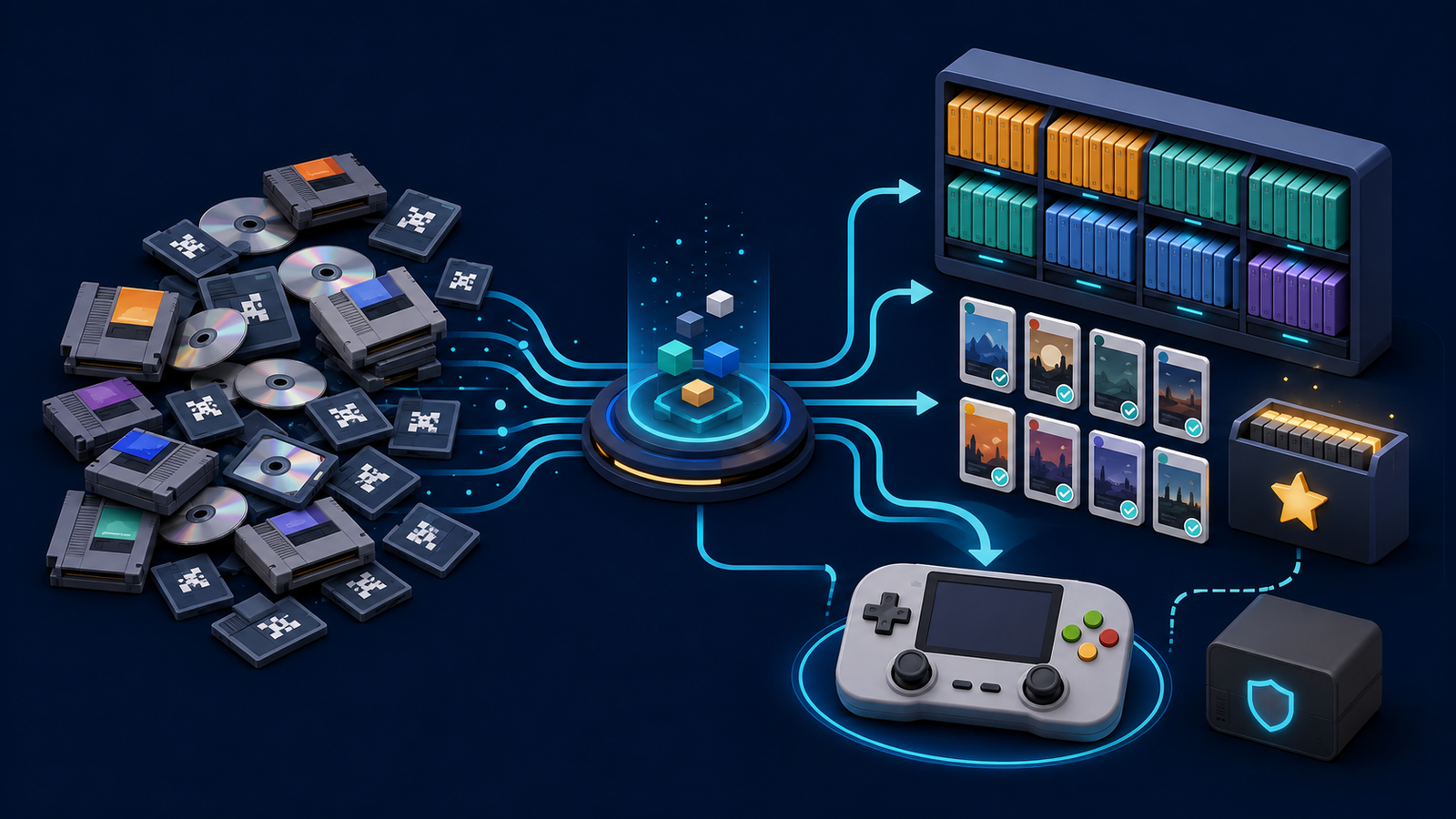

A large retro game library becomes difficult to use when the same title appears five times, disc files are mixed together, box art no longer matches, and every device uses a different folder layout. The solution is not to add another frontend. It is to build one clean master library that frontends can scan reliably.
This guide explains how to organize a retro game library without breaking playlists, multidisc games, saves, or metadata. It applies to collections used with RetroArch, EmulationStation-based systems, Batocera, handhelds, game sticks, and desktop frontends, although each device may require its own final folder names.
Start with a master library, not the device card
Do the main cleanup on a computer or reliable external drive. Treat the handheld or game-stick card as a deployment copy, not the only copy of the collection. Before renaming or moving anything, back up the current ROM folders, playlists, save files, BIOS files, and frontend configuration.
Work on a duplicate and keep the original unchanged until the cleaned library has been tested. This protects working games whose filenames, cue sheets, arcade dependencies, or playlist paths are easy to break.
1. Create one predictable folder structure
Use one top-level folder for games and one folder for each platform. Libretro’s documentation notes that ROMs can be stored wherever RetroArch can access them and shows the common practice of sorting them into system folders.
Retro Library/
  Games/
    Arcade/
    Nintendo - Game Boy/
    Nintendo - Game Boy Advance/
    Nintendo - NES/
    Nintendo - SNES/
    Sega - Genesis/
    Sony - PlayStation/
  BIOS/
  Saves/
  Playlists/
  Metadata/
  Documentation/
Use stable system names rather than changing between abbreviations such as GBA, GameBoyAdvance, and Game Boy Advance. The exact destination folders on Batocera or a handheld may be different, so copy games into the system-defined folders only after the master library is clean.
2. Decide which versions you actually want
A usable library does not need every regional release, revision, prototype, translation, and duplicate. Decide on a simple policy before deleting anything. For example:
- Keep the region and language you can use.
- Prefer the latest verified revision unless an older version has a specific feature.
- Keep alternate regions only when content differs.
- Store hacks, translations, demos, and prototypes in clearly labeled subfolders or separate collections.
- Move uncertain duplicates to a quarantine folder instead of deleting them immediately.
No-Intro catalogs known cartridge and digital releases and provides DAT files for ROM managers, but it does not distribute games. A DAT-based comparison can help identify versions you legally dumped; it is not a source for copyrighted content.
3. Standardize names carefully
Consistent names improve scanning and artwork matching. Preserve useful tags such as region, language, and revision:
Game Title (USA).zipGame Title (Europe) (En,Fr,De).zipGame Title (USA) (Rev 1).zip
Avoid adding personal prefixes, release-site names, or random numbers. Rename in small batches and test before continuing. Do not casually rename arcade ZIP files: MAME and FinalBurn Neo sets may rely on exact short names, parent files, clones, BIOS archives, and the emulator’s expected romset version. Change the display title in the frontend instead of changing an arcade filename you do not understand.
4. Keep multidisc games together
Create one folder per multidisc title. Keep its disc images, cue files, and one M3U playlist together. The M3U should list the discs in order using exact filenames or valid relative paths.
Sony - PlayStation/
  Example RPG/
    Example RPG (Disc 1).chd
    Example RPG (Disc 2).chd
    Example RPG.m3u
Import the M3U entry and hide the individual discs when the frontend supports that option. This prevents three entries for one game and allows disc swapping from a single save context. See BootPixel’s guide to multidisc games in RetroArch before changing an existing disc layout.
5. Separate games from saves, BIOS, and artwork
Do not mix save files, save states, BIOS files, screenshots, and manuals into ROM folders unless the frontend specifically requires it. Separate folders make backups easier and prevent scanners from treating support files as games.
Keep a small text file with the frontend name, device model, firmware version, emulator or core choice, and any unusual folder requirements. This turns a library into a reproducible setup rather than a collection that only works on one card.
6. Import one system at a time
RetroArch’s Import Content scan is recursive, so subfolders can be scanned, but platform permissions and frontend behavior vary. Its strict scanner compares CRC checksums or disc serials with its databases. A loose or manual scan can add content that does not match, although database features and thumbnails may be limited.
Update RetroArch’s databases and core information before scanning. Then import one platform, review its entries, and fix problems before moving to the next. Large collections can take several minutes to scan. A staged import makes it much easier to locate one bad folder, unsupported extension, or naming mistake.
If a playlist is incomplete, use the troubleshooting process for RetroArch playlists that are not showing games instead of repeatedly rescanning the entire library.
7. Scrape metadata only after names are stable
Scraping downloads titles, descriptions, release data, box art, screenshots, and sometimes video previews. Do it after duplicate removal and renaming; otherwise you may download media for entries that will be moved or deleted.
Batocera supports multiple scraping sources and notes that composite images can require several asset requests for one game. For a very large library, begin with one image type, such as box art or a screenshot, and add videos only when storage and download limits allow.
RetroArch associates thumbnails with playlist names and entry labels. Its official documentation explains that playlist thumbnail downloads work best when the playlist and game names match the thumbnail database. If artwork is missing, follow the guide for RetroArch thumbnails that are not showing before manually renaming hundreds of images.
8. Use favorites and collections for navigation
Folders should describe where files belong; collections should describe how you want to browse them. Keep the physical library organized by platform, then build virtual groups such as:
- Favorites
- Recently Added
- Two-Player Games
- Short Games
- Racing
- RPGs
- Family-Friendly
- Translated Games
RetroArch supports custom playlists that can combine platforms and folders. Batocera supports dynamic collections based on scraped information. Accurate metadata makes genre- and series-based collections more useful, while favorites provide a small everyday list without changing the underlying files.
9. Keep a simple library manifest
A spreadsheet or CSV can record each game’s platform, filename, region, language, format, verification status, multidisc status, and backup location. It does not need to contain every metadata field. Its purpose is to answer three questions: what is present, what was changed, and what still needs review.
Mark games as verified only after they launch and accept input. A successful scan proves that a frontend created an entry; it does not prove that the correct core, BIOS, controller mapping, and game file all work.
10. Back up the parts that cannot be recreated easily
Keep at least two copies of the cleaned master library on separate storage devices. Prioritize personal saves, save states, manually corrected metadata, custom playlists, M3U files, configuration notes, and legal game dumps. Downloaded artwork can often be recreated, but saves and manual corrections may be irreplaceable.
After deploying the library to a handheld, back up the card before major firmware changes. BootPixel’s guide to backing up and cloning a retro handheld microSD card explains why a full image and a normal file backup solve different problems.
Quick organization workflow
| Stage | Action | Check before continuing |
|---|---|---|
| Protect | Copy the original library and saves | The original remains unchanged |
| Structure | Create one folder per platform | System names are consistent |
| Clean | Quarantine duplicates and unwanted versions | No uncertain files were deleted |
| Name | Standardize cartridge and disc titles | Arcade dependencies remain intact |
| Import | Scan one system at a time | Entries launch before the next batch |
| Enrich | Scrape selected metadata and artwork | Names and playlist labels are stable |
| Navigate | Create favorites and virtual collections | Physical files stay platform-based |
| Preserve | Update the manifest and second backup | Saves and custom files exist in both copies |
The rule that keeps a library manageable
Separate storage structure from browsing structure. Files belong in predictable platform folders; playlists, favorites, metadata, and dynamic collections provide the convenient views. Clean and verify one system at a time, preserve the original while working, and never let a device card become the only copy.