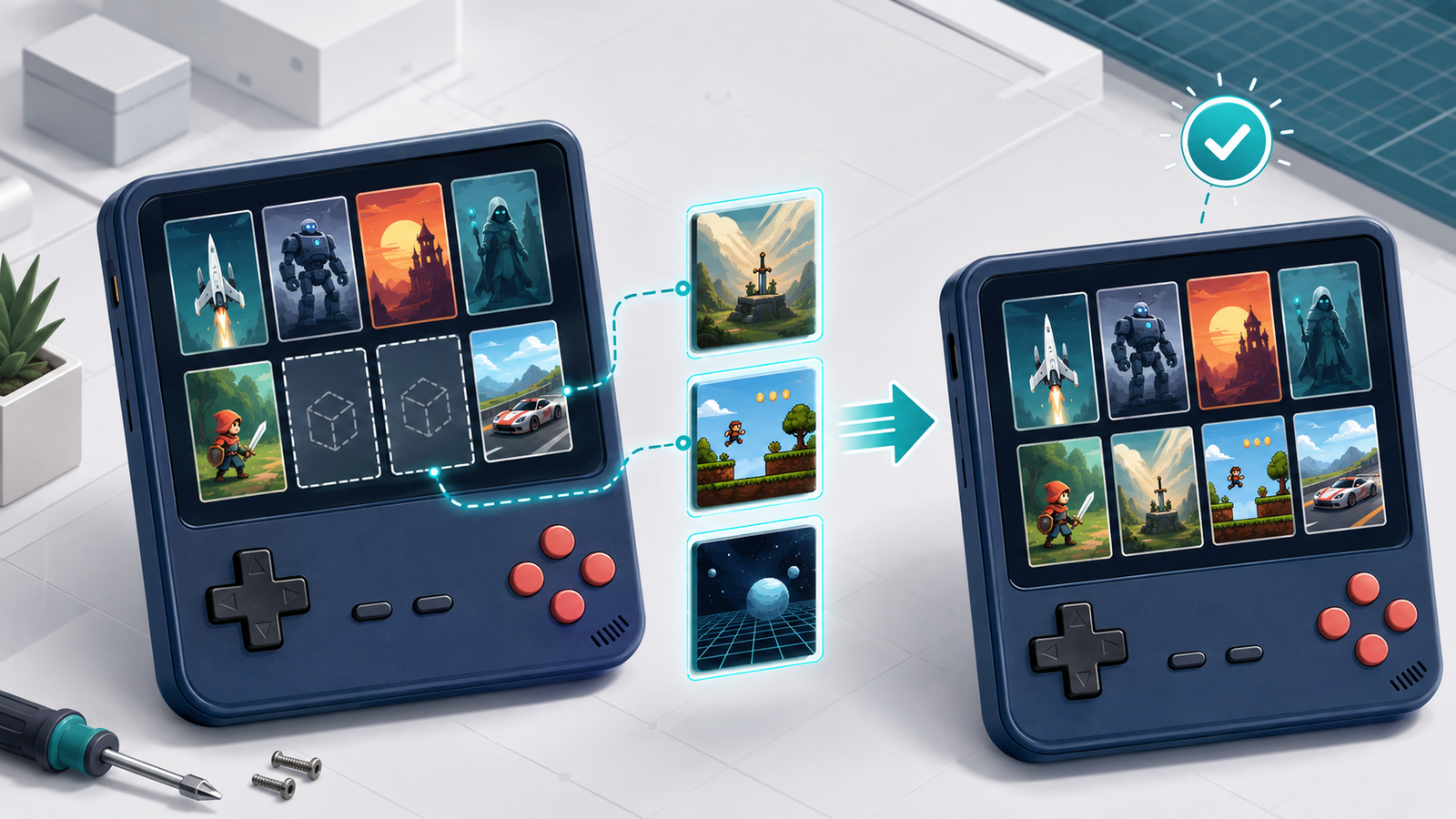

Your games appear in a RetroArch playlist, but the box art area stays blank. Maybe one title has a cover while the next has nothing, or screenshots download successfully for one console but fail for another. When RetroArch thumbnails are not showing, the cause is usually a naming or folder mismatch rather than a broken emulator.
This guide explains how RetroArch matches artwork to playlist entries, how to download thumbnails safely, and how to fix missing box art, title screens, and gameplay screenshots without rebuilding your entire game library.
Why RetroArch Thumbnails Are Not Showing
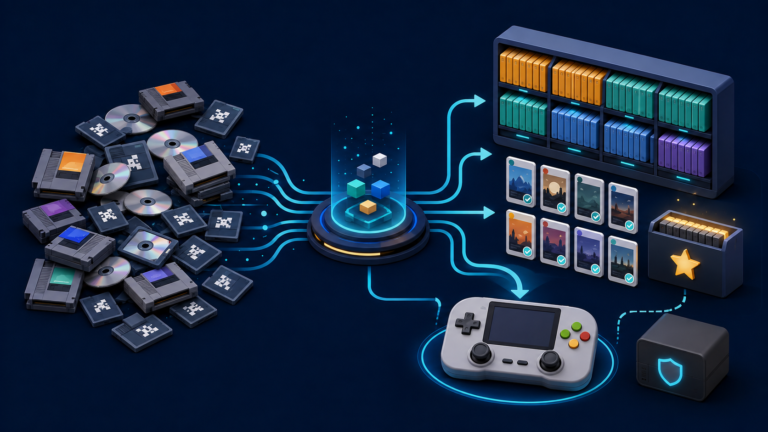
RetroArch does not normally attach artwork directly to a ROM file. It looks at the game name displayed in the playlist, the playlist’s system name, and the selected thumbnail type. These details must lead to the correct image in the thumbnail directory or on the Libretro thumbnail server.
- Box art is stored under
Named_Boxarts. - Gameplay screenshots are stored under
Named_Snaps. - Title-screen images are stored under
Named_Titles. - The parent thumbnail folder must match the playlist name exactly, without the
.lplextension. - The PNG filename must match the game name shown in the playlist.
Because matching depends on names, a perfectly valid game can run normally while its artwork remains missing.
Step 1: Confirm That the Game Is in the Correct Playlist
Open the playlist and check that the game appears under the correct console or system. A game stored in a custom or incorrectly named playlist may not point to the expected thumbnail collection.
For standard playlists, names such as Nintendo – Game Boy Advance or Sega – Mega Drive – Genesis identify the matching artwork collection. If you manually created a playlist, its entries still need the correct database name to retrieve system-specific metadata and thumbnails.
If the game itself is missing from the playlist, solve that first using our guide to games not showing up on a retro handheld. Artwork downloading cannot fix an entry that RetroArch has not imported.
Step 2: Update Databases and Core Information
From the RetroArch main menu, open Online Updater. Update Databases and Core Info Files, then restart RetroArch. Updated databases help the playlist scanner identify known games and assign standardized display names.
The thumbnail image is not downloaded by checksum alone, but a successful database match can give the playlist entry the standardized name used by the artwork repository. This makes later thumbnail matching more reliable.
Step 3: Download Artwork for One Game First
When RetroArch thumbnails are not showing for only a few games, test one missing entry before downloading an entire collection:
- Open the playlist.
- Select the game with missing artwork.
- Open its menu.
- Choose Download Thumbnails.
- Return to the playlist and move away from the entry, then back to it.
Recent RetroArch versions use flexible name matching. According to the official documentation, repeating the individual download attempt up to three times can try additional matches. Do not press the command continuously; allow each request to finish.
Step 4: Download Thumbnails for a Complete Playlist
If the single-game test works, use Online Updater → Playlist Thumbnails Updater and choose the desired system. This downloads artwork for matching entries in that playlist.
Large collections can take time and consume significant storage. Start with one console, confirm the images display correctly, and check the free space on the device or microSD card before processing more playlists. If you are replacing an unreliable card, read our guide to choosing a microSD card for a retro handheld.
Important: the official Playlist Thumbnails Updater can overwrite custom artwork when a matching image exists on the server. Back up custom thumbnails before running a bulk update.
Step 5: Enable On-Demand Thumbnail Downloads
On-demand downloading lets RetroArch request artwork while you browse playlists. The exact menu location can vary by interface and version, but look under Settings → Network or the thumbnail options in Online Updater.
If your playlist uses filenames rather than database-standardized game names, enable Use Filenames for Thumbnail Matching under the playlist settings. This can help manually scanned collections, but standardized playlist names are usually more consistent.
Step 6: Check the Thumbnail Directory
Open Settings → Directory → Thumbnails and verify that the path points to a writable location with enough free space. If RetroArch thumbnails are not showing for any system, this directory is one of the first places to check. A handheld firmware update, migrated SD card, or separate RetroArch installation may change it.
| Symptom | Likely cause | Fix |
|---|---|---|
| No systems show artwork | Wrong or unwritable thumbnail directory | Check Settings → Directory → Thumbnails |
| Only one playlist is blank | Playlist or system folder name mismatch | Compare the exact playlist name |
| Only a few games are blank | Game-name mismatch or missing server image | Try individual download and inspect the displayed name |
| Box art works but screenshots do not | Wrong thumbnail type or missing subfolder | Check Named_Boxarts, Named_Snaps, and Named_Titles |
| Downloads finish but disappear after restart | Storage or permission problem | Test whether the directory is writable |
If RetroArch cannot retain the directory or other options after restarting, follow our guide to fixing RetroArch settings that do not save.
Step 7: Fix a Game-Name Mismatch
Compare the game name displayed in the RetroArch playlist with the expected thumbnail filename. Region tags, punctuation, subtitles, revisions, and alternate names can prevent an exact match. The display name matters more than the original ROM filename in a database-generated playlist.
For example, a playlist entry called Example Game (USA) will not automatically match a custom image called Example Game.png when exact naming is required. Rename the custom PNG to match the displayed entry, or correct the playlist entry carefully.
Some filename characters are replaced because they are invalid in file paths. The official documentation shows that an asterisk may become an underscore. When troubleshooting custom images, compare the actual path and naming rules rather than relying only on what appears on screen.
Step 8: Add Custom Thumbnails Manually
Custom artwork should be saved as PNG files inside the configured thumbnail directory. Use this structure:
thumbnails/
  Exact Playlist Name/
    Named_Boxarts/
      Exact Game Name.png
    Named_Snaps/
      Exact Game Name.png
    Named_Titles/
      Exact Game Name.png
The playlist folder name must match the system playlist exactly, and the image filename must match the game name. Use reasonably sized images to avoid wasting storage and memory on a low-powered handheld. Keep a backup of custom artwork before using any bulk updater.
Why Some Games Still Have No Artwork
- The game is a hack, translation, homebrew release, prototype, or uncommon regional revision.
- The displayed playlist name differs from the thumbnail repository name.
- The official repository has no image for that thumbnail type.
- The playlist uses an incorrect system database name.
- The device cannot write to the configured thumbnail folder.
- The device is offline or the download request failed.
A missing image does not prove that the ROM is damaged. If the game launches correctly, treat artwork as a separate library-management problem.
A Safe Troubleshooting Order
- Confirm that the game launches and appears in the correct playlist.
- Update databases and core information.
- Test Download Thumbnails on one game.
- Check the configured thumbnail directory and free space.
- Compare the displayed game name with the expected PNG name.
- Enable on-demand and filename-based matching when appropriate.
- Back up custom artwork before running the playlist updater.
- Add a custom PNG only after the automatic methods fail.
Final Advice
When RetroArch thumbnails are not showing, troubleshoot the match rather than reinstalling the emulator. Start with one playlist entry, confirm its game name and system, test an individual download, and verify the thumbnail directory. Once one game works, expand the same fix to the rest of the playlist.