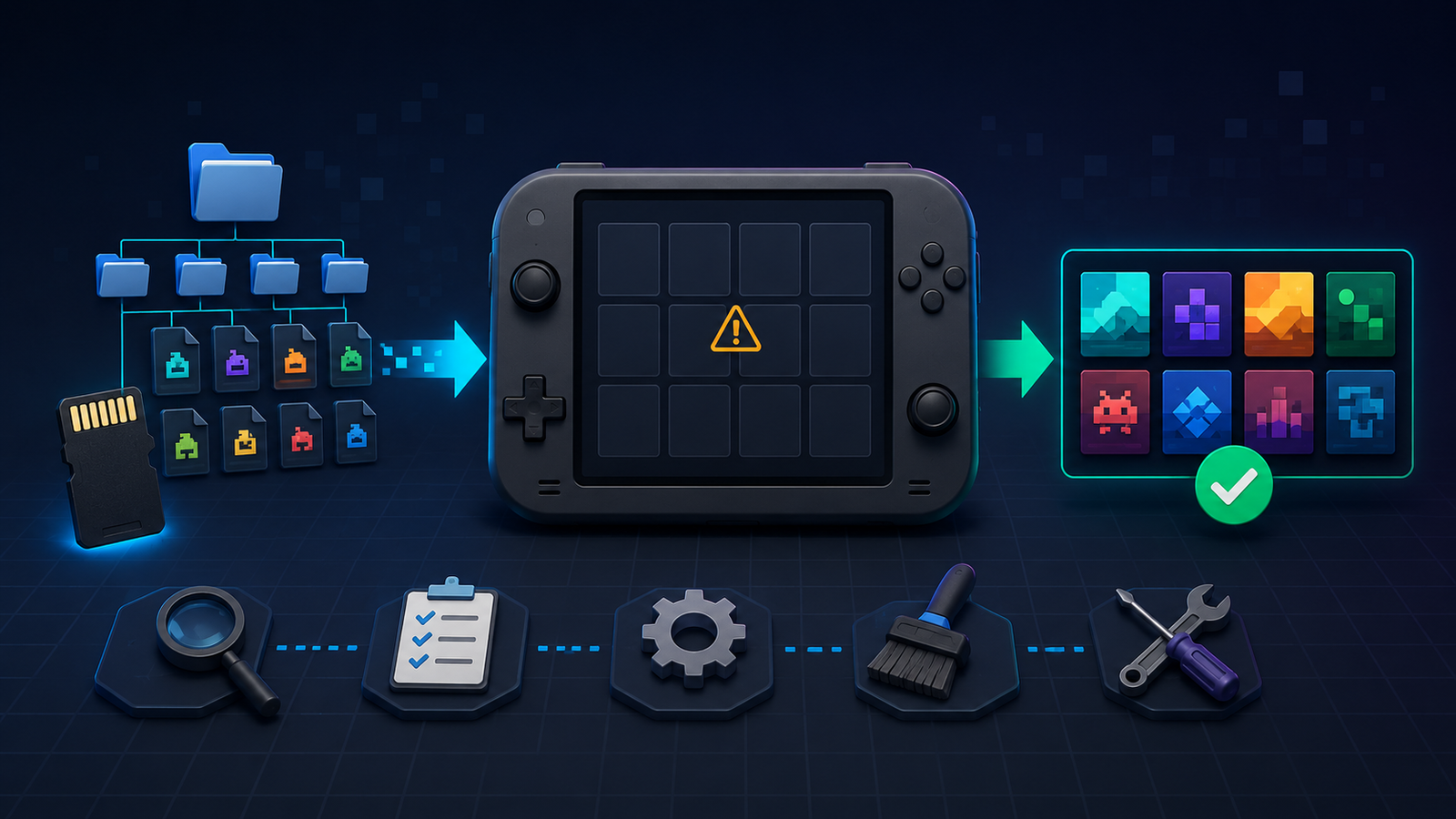

You copied games to the microSD card, put it back into your handheld, and turned the device on—yet the new titles are nowhere to be found. This is a common problem, but it rarely means the games or the handheld are permanently broken.
In most cases, the cause is a wrong folder, an unsupported file format, a game list that has not been refreshed, or a storage card that was not prepared correctly. Work through the checks below in order. Change one thing at a time so you know which step fixed the problem.
Before changing files: shut the handheld down properly, remove the card only after it is fully powered off, and back up anything important. If this is a new device, start with our first-time retro handheld setup guide.
1. Confirm that the files are on the correct card
Some handhelds use one microSD card for the operating system and another for games. Others use a single card with several partitions. Make sure you copied your files to the storage location that the current firmware actually uses.
Do not assume that the largest visible partition is correct. Check the firmware’s documentation and look for a folder usually named roms, Roms, or EASYROMS. On ArkOS, for example, game folders may appear under /roms over the network or inside the EASYROMS partition when the card is connected to a computer.
If Windows says that another partition must be formatted, cancel the prompt. Linux-based firmware often includes partitions that Windows cannot read. Formatting one of them can erase the system.
2. Use the exact folder expected by the firmware
Each system has a specific folder. A Game Boy Advance file placed in a PlayStation folder will not appear in the correct console list. Folder names also vary between firmware projects: one system may expect gba, another may use a different structure, and disc-based platforms can have additional rules.
Open the official system list for your firmware and verify:
- The parent ROM folder is correct.
- The console subfolder has the expected name.
- The game is not buried inside too many subfolders.
- The filename does not contain unusual characters that the frontend may handle poorly.
ROCKNIX documents separate folders inside its roms directory and provides a systems section showing where files belong. OnionUI also lists the ROM folder and supported extensions for each emulator. Use those tables instead of copying the layout from a different handheld.
3. Check whether the emulator supports the file format
A file can be a valid game dump and still be invisible because the installed emulator core does not recognize its extension. Cartridge systems often accept formats such as .gb, .gba, or .sfc, while disc systems may use combinations such as .cue and .bin, compressed .chd files, or playlist files such as .m3u.
Do not rename an extension simply to make it look supported. Changing game.bin to game.iso does not convert the file. Check the official core documentation for accepted extensions and convert only with a reputable tool when a genuine format conversion is necessary.
Compressed archives are another common cause. Some cores can load .zip files directly, while others expect the game to be extracted. If the firmware’s system page does not list .zip or .7z, extract a legal backup and test the original game file.
4. Refresh or rebuild the game list
Many frontends cache their game lists. Rebooting does not always rebuild that cache, so newly copied files may stay hidden until you run the correct refresh command.
- ROCKNIX: open the main menu, go to Game Settings, and choose Update Gamelists.
- OnionUI: from the Games tab, press SELECT, choose Refresh All Roms, and confirm.
- RetroArch: use Import Content to scan the directory and build or update a playlist.
Menu names may change between versions, so use the instructions for the firmware installed on your device. Allow the refresh to finish before restarting or removing the card.
5. Check frontend filters and “gamelist only” settings
If only some games disappeared, the files may still be present while the frontend is filtering what it displays. Look for filters involving favorites, collections, hidden games, genres, or “parse gamelists only.” A prebuilt gamelist.xml can also point to files that have been moved or renamed.
First, clear visible filters and return to the full system list. Then rebuild the list using the firmware’s normal refresh function. Avoid deleting configuration or XML files until you have backed them up and confirmed that the official documentation recommends it.
6. Verify multi-disc and arcade game requirements
Some systems need more than a single game file. PlayStation dumps commonly rely on a .cue file that references one or more .bin tracks. If the referenced filenames do not match exactly, the game may fail to appear or launch. Multi-disc games may work better through an .m3u playlist when the firmware supports it.
Arcade games are especially version-sensitive. An arcade ZIP is not a generic package that works with every core. The ROM set must match the emulator family and version expected by the firmware. If only arcade titles are missing, consult the firmware’s arcade system page before changing global settings.
7. Separate “not listed” from “listed but not launching”
These symptoms point to different causes. A game that does not appear at all usually indicates a folder, extension, scan, cache, or filter problem. A game that appears but returns to the menu may need a different emulator core, a required BIOS file, a correct disc descriptor, or a valid game dump.
When the game is listed but reports missing firmware, use our retro handheld BIOS files guide to verify the active core, System/BIOS folder, exact filename, and checksum.
Test the file directly in RetroArch when available: load the appropriate core, choose Load Content, and select the game. If it launches directly but does not appear in the playlist, focus on scanning and playlist settings. If it fails to launch directly, check the core, file format, and BIOS requirements.
8. Look for microSD card or filesystem errors
If files vanish, become unreadable, or reappear after you delete them, stop using the card until you have backed up what can still be read. Those symptoms can indicate filesystem corruption or failing flash storage.
Try the card in a reliable reader and verify that the copied file remains present after safely ejecting and reconnecting it. Check the filesystem with the appropriate tool for your computer, but do not run repairs before preserving important saves and configuration files. If the card is unbranded, unreliable, or repeatedly corrupts data, replace it with a dependable card and restore from a known-good backup.
Before replacing or repairing storage, use our microSD backup and cloning guide to preserve saves, create a full image when the card is healthy, and test the replacement safely.
9. Test with one known-good legal game
Do not troubleshoot an entire library at once. Choose one game you are legally entitled to use, confirm that its format is supported, and place it in the documented folder. Refresh the game list and test again.
If the single file appears, add a few more titles in small batches. If it does not, write down the handheld model, firmware name and version, folder path, file extension, and selected emulator. Those details make it much easier to compare your setup with official instructions or ask for help without sharing copyrighted files.
Quick troubleshooting checklist
- Power the handheld off before removing the card.
- Confirm which card or partition stores games.
- Use the firmware’s exact ROM folder names.
- Check the emulator’s supported file extensions.
- Extract archives only when the core requires it.
- Refresh or rebuild the game list.
- Clear frontend filters and collection views.
- Check special rules for disc and arcade systems.
- Separate missing games from games that fail to launch.
- Test one known-good legal file before copying a full library.
Official references
- RetroArch: Importing Content
- RetroArch: ROMs, Playlists, and Thumbnails
- ROCKNIX: Add Games
- OnionUI FAQ: Refreshing ROM Lists
- ArkOS: Emulators and ROM Folder Information
Most missing-game problems are solved by correcting the folder, confirming the file extension, and refreshing the frontend. If those steps fail, test one file directly in the emulator and inspect the card before making larger changes.