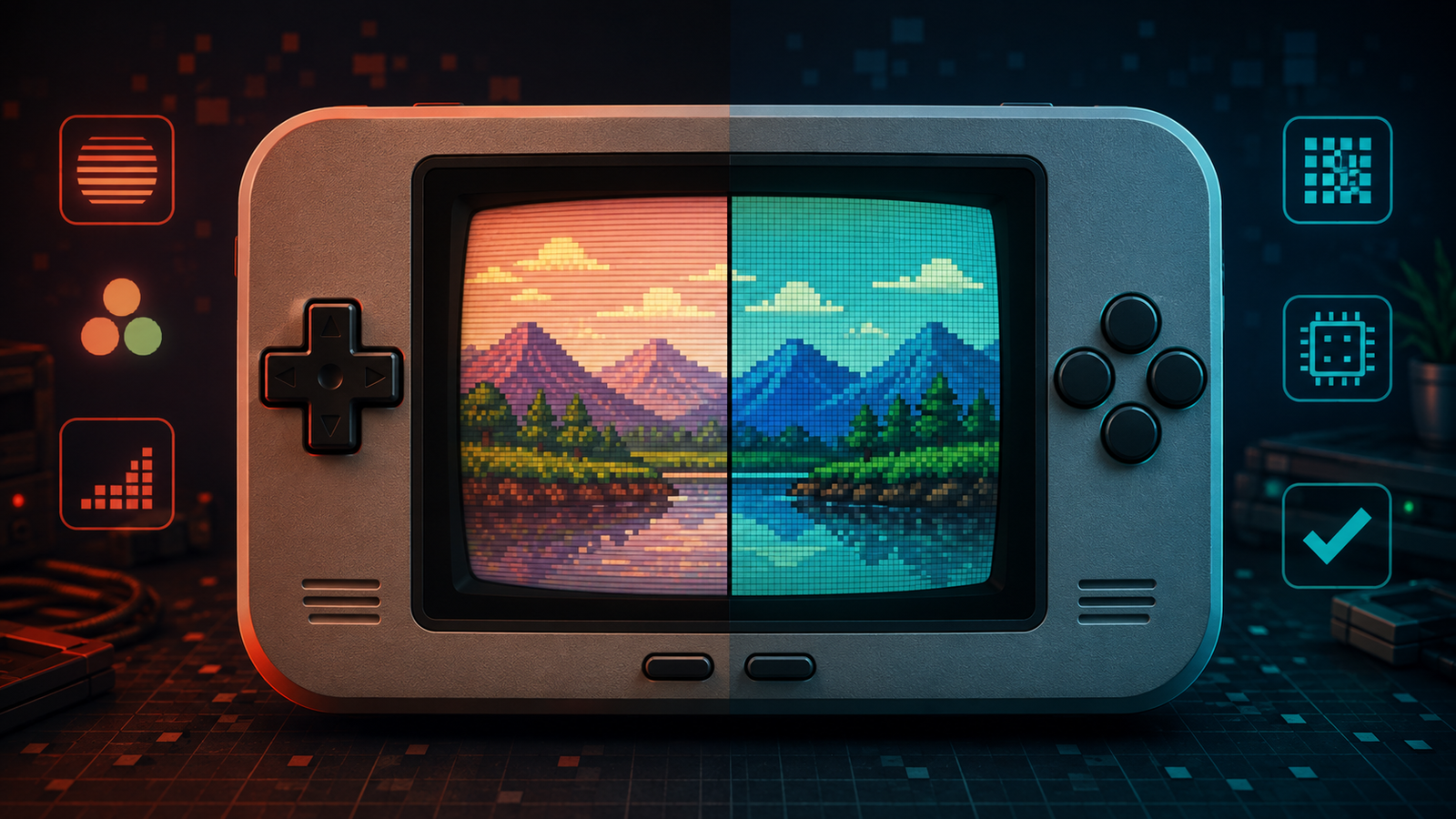

The best RetroArch shaders can make pixel art look closer to the screens it was designed for. A good CRT preset can add scanlines and phosphor structure to console and arcade games, while an LCD shader can recreate the pixel grid and color response of classic handheld systems.
The challenge is choosing an effect that suits the original hardware without making the image too dark, blurry, or slow. This guide explains the main shader styles, useful preset families, compatibility differences, and practical performance settings for desktops and lower-powered retro handhelds.
What RetroArch Shaders Actually Do
A shader is a small graphics program applied after the emulator core produces a frame. It can change scaling, sharpness, color, scanlines, pixel shape, screen curvature, glow, and other visual characteristics without modifying the game itself.
RetroArch can stack several shader passes into a preset. Simple presets may use one inexpensive pass, while advanced CRT simulations can combine many passes and textures. More passes and higher output resolutions usually require more GPU performance.
Shaders are different from overlays and bezels. A shader processes the game image; an overlay places artwork or controls around it. If your current problem is basic scaling rather than screen simulation, start with our guide to fixing blurry retro games on modern displays.
Update the Shader Packs First
Before comparing presets, open Main Menu > Online Updater and update the shader package supported by your active video driver. Depending on the platform, RetroArch may offer Update Slang Shaders, Update GLSL Shaders, or a legacy Cg package.
Then load a game, open the Quick Menu, select Shaders, and choose Load Shader Preset. A running game is useful because parameter changes can be previewed immediately.
Slang, GLSL, and Cg: Which Format Should You Use?
RetroArch supports multiple shader formats, but they are not interchangeable with every video driver.
- Slang (.slangp): the recommended modern format when available. It works with modern drivers such as Vulkan, glcore, and Direct3D 11 on supported platforms.
- GLSL (.glslp): widely used with OpenGL and OpenGL ES, including many phones and lower-powered handhelds.
- Cg (.cgp): a deprecated format that may be unavailable in current builds.
If a preset does not appear or fails to load, check the active video driver under Settings > Drivers > Video. Changing the driver requires a complete RetroArch restart. Record the current setting before experimenting.
Best CRT Shader Styles
Lightweight Scanline Presets
For budget handhelds and older computers, begin with a simple scanline or lightweight CRT preset. Families such as zfast-crt and crt-pi are commonly used as performance-friendly starting points in RetroArch shader collections. They add visible scanlines and mild CRT character without the cost of elaborate multi-pass simulation.
Choose this style when you want a clearer image, low GPU load, and minimal setup. It is especially suitable for 8-bit and 16-bit console games on small screens.
Balanced CRT Geometry Presets
Presets in the crt-geom family can add scanlines, a simulated shadow mask, and optional screen curvature. They create a stronger television look than basic scanlines, but may require more performance and careful parameter adjustment.
Use moderate curvature and mask strength first. Excessive curvature can crop corners, while a strong mask can darken the image on small or low-resolution displays.
Advanced Multi-Pass CRT Presets
Complex CRT presets aim to reproduce phosphor masks, bloom, beam behavior, signal softness, and other display characteristics. They can look impressive on a 1080p or 4K monitor, but the same preset may run poorly or look cramped on a compact handheld.
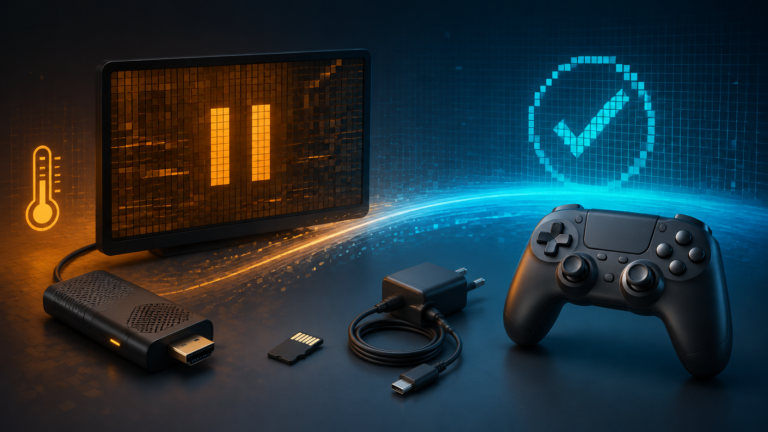
Use advanced presets only after confirming that the game runs at full speed without a shader. If audio begins popping or gameplay stutters, return to a simpler preset. Our RetroArch audio crackling guide explains why heavy visual effects can disrupt synchronization.
Best Handheld and LCD Shader Styles
LCD Grid Presets
LCD-grid presets simulate the visible gaps between pixels on devices such as the Game Boy Advance and other early color handhelds. They can make low-resolution art feel more structured and reduce the overly smooth appearance produced by bilinear filtering.
Search the bundled handheld shader folder for LCD, grid, or dot-matrix presets compatible with your active format. Names and availability can vary between Slang and GLSL packages.
Dot-Matrix and Monochrome Looks
Original monochrome handhelds used reflective displays with distinct pixel gaps, limited contrast, and characteristic color tones. Dot-matrix presets can recreate that structure, while color-correction parameters can move the palette toward green, gray, amber, or another display style.
These effects look best when the aspect ratio and integer scaling are already correct. If the grid pattern appears uneven, check scaling before increasing shader strength.
Color-Correction Presets
Some handheld games were designed for screens with lower contrast and different color response than modern panels. A color-correction shader can reduce harsh saturation without adding a heavy grid. This is a good choice when you prefer clean pixels but want colors closer to the original display.
How to Compare Shaders Correctly
- Load one familiar game and pause at a bright, detailed scene.
- Disable shaders and note the baseline sharpness, color, and performance.
- Load one preset at a time.
- Resume gameplay and test scrolling, sound, and controller response.
- Check dark scenes for crushed detail and bright scenes for excessive bloom.
- Choose the lightest preset that produces the look you want.
A static screenshot is not enough. Some scaling problems appear only while the screen scrolls, and some demanding shaders cause audio or frame-pacing problems only during gameplay.
Performance Tips for Retro Handhelds
- Prefer single-pass or explicitly lightweight presets.
- Test shaders at the device’s native output resolution.
- Disable unnecessary rewind, run-ahead, and recording features while troubleshooting.
- Avoid combining a heavy shader with high internal core resolution.
- Reduce curvature, bloom, mask, or halation parameters when available.
- Try the compatible GLSL version on OpenGL-based low-power devices.
- Confirm that the game still runs at full speed with clean audio.
If performance remains poor, remove the shader and test a simpler emulator core. Visual authenticity should not come at the cost of unstable gameplay.
Save a Shader for One Game, Core, or Every System
When you find a preset you like, open Quick Menu > Shaders > Save. RetroArch can save automatic presets at different levels:
- Global Preset: applies broadly to all compatible content.
- Core Preset: applies whenever a specific emulator core is used.
- Content Directory Preset: applies to games stored in a particular folder.
- Game Preset: applies only to the current game.
The most specific matching preset takes priority. A game preset can therefore override a core or global preset. Start with core presets for console-specific looks and use game presets only for exceptions.
If your shader disappears after restarting, confirm that the preset was saved at the correct level and that RetroArch can write to its configuration directory. See our guide to RetroArch settings not saving for permission and configuration fixes.
Quick Recommendations
- Low-power handheld: simple scanlines, zfast-style CRT, or a lightweight LCD grid.
- 1080p desktop monitor: balanced CRT geometry or moderate LCD-grid presets.
- 4K display with a capable GPU: advanced multi-pass CRT simulation.
- Clean pixel-art look: integer scaling or a simple pixel-scaling preset with minimal color correction.
- Original handheld character: LCD grid, dot-matrix structure, and restrained color correction.
Frequently Asked Questions
Why is the Shaders option missing in RetroArch?
Load a game first and open the Quick Menu. If the option is still unavailable, the active video driver or platform build may not support the installed shader format.
Do shaders reduce emulation performance?
They can. Simple one-pass effects may have little impact, while advanced multi-pass presets can require substantial GPU power, particularly at high output resolutions.
Which is better: Slang or GLSL?
Slang is the recommended modern format when supported. GLSL remains useful on OpenGL and OpenGL ES platforms, including many lower-powered handhelds. Choose the format compatible with your active video driver.