
A retro handheld that feels smooth at first but begins stuttering after several minutes is giving you an important clue. The problem may be an emulator setting, an unsuitable core, a slow or failing microSD card, background work, or heat forcing the processor to reduce its speed. These causes can look similar on screen, but they need different fixes.
First identify what “running slow” means
Performance problems are easier to solve when you describe the symptom precisely:
- Constant slowdown: gameplay and audio remain slow from the moment the game starts.
- Intermittent frame drops: the game is usually smooth but pauses or skips frames during specific effects or areas.
- Frame-pacing stutter: the reported frame rate may look correct, yet scrolling appears uneven.
- Audio crackling: sound breaks up because the emulator cannot deliver audio consistently or synchronization settings are wrong.
- Performance that worsens over time: the handheld starts normally, becomes hot, and then loses speed.
Test one known game for at least ten minutes and note when the problem begins. Then try a simpler system, such as an older cartridge console. If every system is slow, investigate the device, storage, power mode, or global settings. If only one game or one platform struggles, focus on that emulator core and its options.
Return performance settings to a safe baseline
Before chasing individual options, record your current settings and reset the affected system or game to its firmware defaults when possible. Custom firmware often supplies reasonable per-device defaults. Copying settings from another handheld can make performance worse because the processor, graphics driver, display refresh rate, and emulator versions may differ.
Choose a core the hardware can sustain
Two emulator cores for the same console can have very different performance and accuracy requirements. A more accurate core may need substantially more CPU power, while a lighter core may run smoothly but offer different compatibility or features.
Use the core recommended by the handheld firmware for your exact device and system. If one game is unusually demanding, test another supported core through a game-specific override instead of replacing the global choice immediately. Keep BIOS files and game dumps consistent during the comparison so you are testing the core rather than several variables at once.
Lower internal resolution and graphics enhancements
Higher internal resolution is one of the quickest ways to overload the GPU in later 3D systems. Return resolution scale to native or 1x, then disable enhancements such as anti-aliasing, high-resolution texture options, widescreen hacks, perspective correction, and expensive post-processing.
For pixel-art systems, use a simple scaling method before adding a shader. Some CRT and LCD shaders are designed for low-powered devices, while multipass presets can be demanding. Our guide to RetroArch shaders and performance explains how to start with a lightweight preset.
Disable features that run extra emulation work
Some RetroArch features improve convenience or latency by asking the handheld to do more work:
- Rewind continuously stores previous states and can increase memory and processing demands.
- Run-ahead or preemptive frames performs additional emulation work to reduce input latency.
- Frame delay reduces latency by leaving less time to produce each frame and may expose limited performance headroom.
- Heavy shaders add GPU passes after the emulator renders the original image.
- Fast-forward asks the system to emulate faster than normal and cannot exceed the available hardware performance.
Turn these features off during diagnosis. If normal speed returns, re-enable only the feature you value most and test a conservative setting. See our dedicated guides if RetroArch rewind affects performance or fast-forward behaves unexpectedly.
Check video and audio synchronization
A game can appear to stutter even when the emulator has enough processing power. Libretro’s troubleshooting documentation notes that an inaccurate display refresh-rate configuration can cause video stutter or audio problems. Keep vertical synchronization and refresh-rate options at the firmware’s tested defaults before making advanced adjustments.
Very low audio latency can also cause stuttering because the audio buffer has too little margin. If sound crackles at the same time as the image stutters, return audio latency and synchronization to default values first. Our RetroArch audio-crackling guide provides a focused sequence for audio drivers, latency, synchronization, and resampling.
Watch for thermal throttling
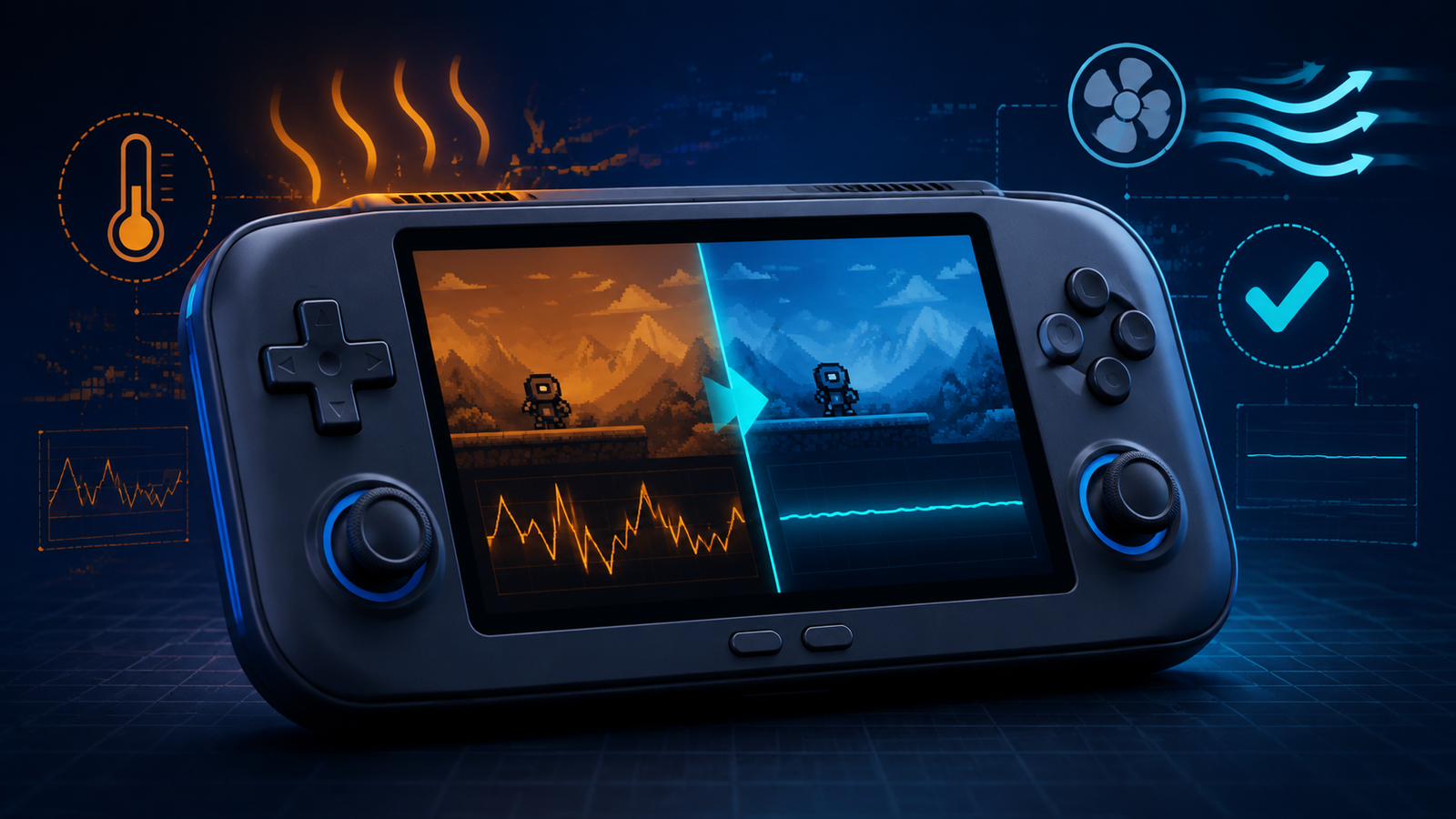
Heat-related slowdown usually follows a pattern: the game begins at normal speed, the casing becomes noticeably warmer, and performance drops after sustained play. Android’s official game-performance documentation explains that high CPU and GPU use generates heat and that an overheated device may reduce processor speeds to cool itself. This thermal throttling lowers frame rate and can also increase battery drain.
If performance worsens with temperature:
- Stop playing and let the device cool naturally.
- Do not cover ventilation openings or play inside a case.
- Avoid direct sunlight, hot rooms, blankets, and other insulating surfaces.
- Test without charging, because charging can add heat.
- Reduce internal resolution, shaders, and other sustained workload.
- Use a balanced or normal performance profile instead of the highest mode.
Do not place the handheld in a refrigerator or freezer. Rapid temperature changes can create condensation. Do not open the device or modify thermal pads unless you understand the warranty and electrical risks. A battery that swells, produces an unusual smell, becomes extremely hot, or separates the case is a safety issue: stop using and charging the device and seek qualified service.
Check the power and performance profile
Some Android and Linux handhelds offer battery-saver, balanced, performance, or per-system profiles. Battery saver can reduce CPU or GPU speed; maximum performance can create heat that later causes throttling. Balanced mode is often the best diagnostic baseline because it avoids both an immediate power limit and unnecessary heat.
Charge the battery adequately before testing. A device may behave differently at very low charge, and a weak power adapter can complicate tests performed while charging. Use the manufacturer-recommended charger and cable rather than assuming that a higher advertised wattage will improve emulation.
Rule out microSD card and storage problems
A slow or failing microSD card can cause long loading pauses, artwork delays, corrupted files, or general menu sluggishness. It is less likely to cause a perfectly repeatable frame-rate drop in a game that has already loaded, but disc-based systems and games that stream data can expose storage problems.
Back up saves and important configuration before troubleshooting the card. Check free space, test the filesystem for errors on a computer, and compare with a dependable replacement card when possible. Do not repeatedly benchmark or image a card that disconnects, reports read errors, or becomes abnormally slow. Follow our microSD backup and cloning guide before replacing storage.
Use a repeatable troubleshooting test
- Choose one game and one reproducible scene.
- Restart the handheld and test while it is cool.
- Record the core, internal resolution, shader, power profile, and special latency features.
- Return the game or system to default settings.
- Disable rewind, run-ahead, frame delay, and heavy shaders.
- Lower internal resolution to native or 1x.
- Test for at least ten minutes and note whether heat changes the result.
- Change only one option at a time and repeat the same scene.
This method separates a sustainable improvement from a change that only appears to work for a few seconds. It also gives you useful evidence if you need help from the firmware or emulator community.
When the handheld has reached its limit
Settings cannot create processing power that the hardware does not have. If a demanding system remains slow at native resolution with enhancements and extra latency features disabled, the realistic choices are a lighter compatible core, a different version of the emulator, a lower target system, or more capable hardware.
Frameskip can make some games feel more playable, but it does not make emulation fully accurate and may produce uneven motion or missed visual information. Use it as a last compromise, not proof that the device is running the game correctly.
Final performance checklist
- The issue was tested in a repeatable scene.
- Default settings and the firmware-recommended core were tried.
- Internal resolution and enhancements were reduced.
- Rewind, run-ahead, frame delay, and heavy shaders were disabled for testing.
- Audio and video synchronization returned to safe defaults.
- The device was compared while cool and after sustained play.
- Ventilation, charging, power profile, free space, and microSD health were checked.
- Firmware changes were backed up and model-specific.
A slow retro handheld is easiest to fix when you identify whether the limit is the game, core, settings, storage, power profile, or temperature. Start from a clean baseline, reduce one source of workload at a time, and keep the settings that remain stable during a longer test.