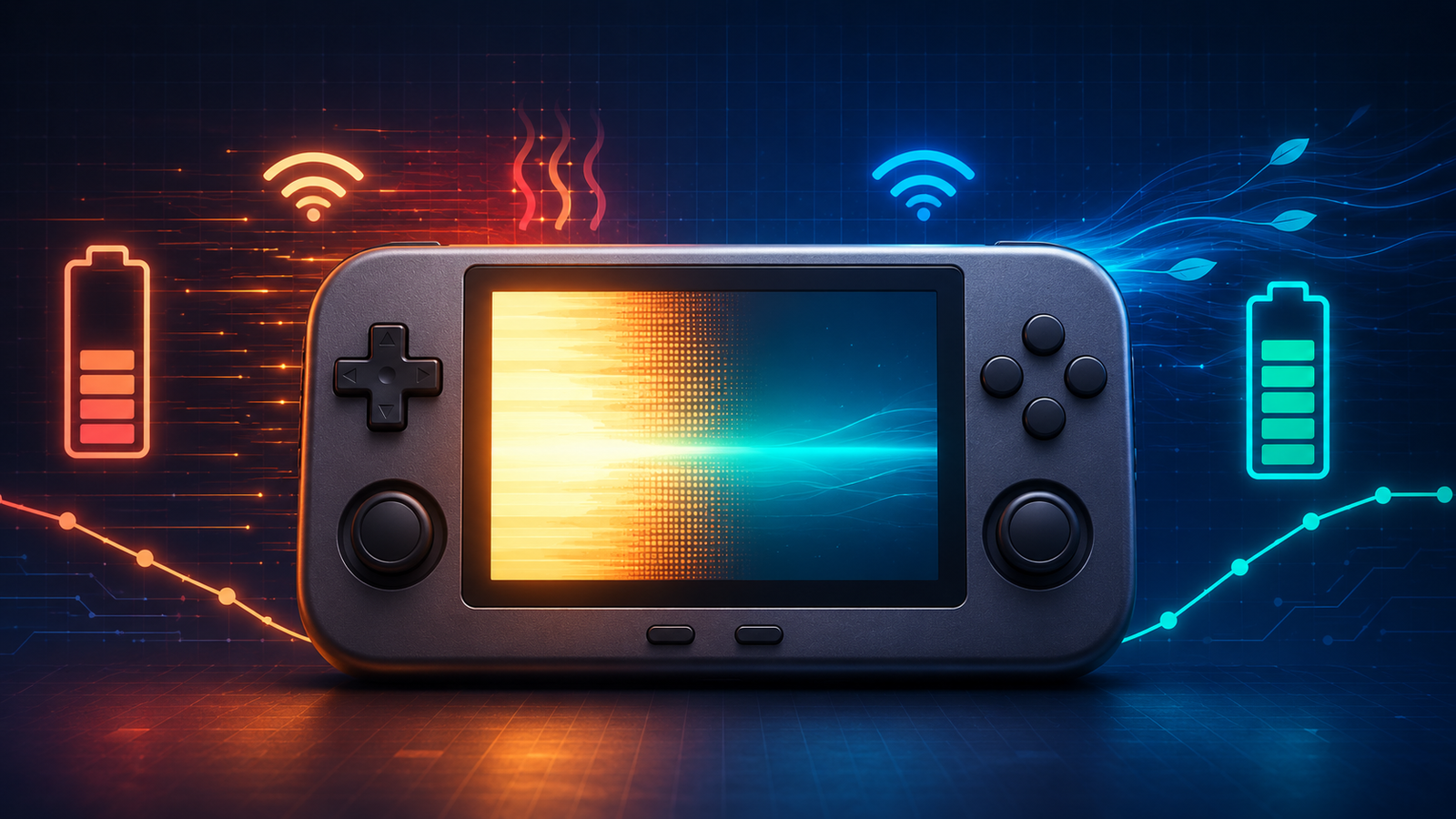

If your retro handheld battery is draining fast, the cause is often not one defective part. Screen brightness, performance mode, wireless radios, heavy emulator features, heat, background activity, and normal battery wear can all shorten a session. The best fix is to change one setting at a time and compare the result under the same conditions.
This guide explains the settings that usually make the biggest practical difference on Android- and Linux-based handhelds. Menu names vary by device and firmware.
First, measure battery drain under repeatable conditions
Do not judge battery life from one unusually demanding game. Create a simple baseline:
- Charge the handheld fully with a compatible charger.
- Restart it and wait two or three minutes.
- Set a fixed brightness level and volume.
- Turn Wi-Fi and Bluetooth either on or off, then keep that choice unchanged.
- Run the same game, emulator core, and save point for 30 minutes.
- Record the starting and ending percentage, device temperature, and any performance problems.
Repeat this test after each major adjustment. Harder systems place a much heavier load on the processor than older 8- and 16-bit consoles, so compare like with like.
1. Reduce screen brightness
Brightness is one of the easiest power loads to control. Start around the lowest level that remains comfortable in your room, then raise it only when needed. Maximum brightness is useful outdoors, but it rarely makes sense in a dim room.
Also shorten the screen timeout so the display does not remain active when the handheld is sitting in a menu.
2. Use Balanced or Battery mode instead of Performance mode
Many handhelds expose a power profile, CPU governor, thermal profile, or performance level. A maximum-performance profile keeps more processing capacity available, which can increase energy use even when the game does not need it.
Use Balanced for general play and test Battery Saver with easier systems. If Battery Saver causes audio crackling or uneven frame pacing, return to Balanced rather than accepting poor emulation. Android’s game optimization documentation specifically recognizes the tradeoff between performance and battery-focused modes.
3. Match the emulator and core to the system
A more demanding core may prioritize accuracy or advanced features that your device does not need for every game. When two compatible cores are available, compare them with the same title and settings. Use the option that produces stable audio and full-speed gameplay without holding the CPU at an unnecessarily high load.
Do not switch cores blindly if you rely on save states, because states may not be portable between cores. Make a normal in-game save and back up important data first. BootPixel’s guide to RetroArch cores, content, playlists, and settings explains how these layers relate.
4. Lower internal resolution and graphics enhancements
Higher internal resolution, texture filtering, anti-aliasing, widescreen hacks, and enhanced geometry increase GPU work. These options matter most for 3D systems such as PlayStation, Nintendo 64, Dreamcast, PSP, GameCube, and PS2.
Return to native or 1x resolution, disable optional enhancements, and confirm that the game remains visually acceptable. Increase one option at a time afterward. This approach usually produces a better balance than enabling every enhancement globally.
5. Limit frame rate and avoid unnecessary high refresh rates
Running the display or emulator faster than the content requires can waste energy. Use the game’s intended frame rate and a normal display refresh rate unless a specific setup benefits from more. Android’s official guidance notes that stable frame-rate throttling and reduced rendering workload can lower power consumption, although the result varies by device.
Disable fast-forward when you are not using it and make sure it is not stuck behind an unnoticed hotkey. If speed controls behave incorrectly, see how to fix RetroArch fast-forward.
6. Disable heavy latency and history features when you do not need them
Rewind continuously stores gameplay history. Run-ahead can execute additional emulation work to reduce latency. Frame delay and certain synchronization options can also reduce processing headroom. These features are useful, but they are not free.
For longer battery life, disable rewind and run-ahead temporarily, then repeat the 30-minute test. If you want rewind later, use a modest buffer and only enable it for systems the handheld runs comfortably. The related RetroArch rewind guide covers the performance cost and configuration checks.
7. Use lightweight shaders
Complex CRT masks, multiple shader passes, high-resolution scaling, and advanced handheld effects can place a sustained load on the GPU. Try no shader first, then add a lightweight preset if the visual improvement matters to you.
The BootPixel shader guide includes performance-oriented options. Remember that a shader that is effortless for a powerful handheld may be expensive on a smaller device.
8. Turn off radios, vibration, LEDs, and unused accessories
Disable Wi-Fi when you are not downloading metadata, using achievements, streaming, or playing online. Turn off Bluetooth when no wireless controller or headset is connected. On Android handhelds, Airplane mode can be a convenient starting point, but confirm that it does not disable something you need.
Also reduce vibration, decorative LEDs, speaker volume, and USB accessories when battery life matters more than those features. Individually these changes may be small; together they reduce unnecessary background consumption.
9. Close background apps and downloads
Android handhelds may continue syncing accounts, scanning media, downloading artwork, updating apps, recording the screen, or running overlays. Finish large downloads before testing and close tools you are not using. Avoid aggressive “RAM cleaner” apps, which may create more background activity or interrupt emulator data.
10. Keep the handheld cool
High CPU and GPU utilization generates heat, and power efficiency falls as a device gets hotter. Android’s power-efficiency guidance explains that thermal throttling affects both performance and the rate of battery drain. Use a sustainable performance level rather than forcing the highest clocks for every system.
Keep vents uncovered, do not leave the handheld in direct sun, and avoid insulating it with a thick case during demanding games. Playing while charging adds another heat source, so test demanding systems while unplugged when practical. For deeper diagnosis, use the companion guide for a slow or overheating retro handheld.
11. Check sleep drain and use a full shutdown when necessary
Some custom firmware builds and Android apps do not enter deep sleep reliably. Charge the device, note the percentage, put it to sleep for several hours, and compare the result. Then repeat the test after a full shutdown.
If shutdown drain is low but sleep drain is high, look for firmware updates, stuck network activity, background apps, or an emulator that remains active. A full shutdown is often the safer choice when the handheld will stay unused for days.
12. Verify charging behavior and battery condition
Use a charger and cable compatible with the manufacturer’s stated requirements. A weak cable can charge slowly or disconnect intermittently, while an unsupported charging method may never fill the battery as expected.
Battery capacity also declines with age and use. Settings cannot restore lost chemical capacity. Warning signs such as swelling, separation of the case, a chemical smell, unusual heat while idle, or repeated sudden shutdowns require a different response: stop using and charging the device, keep it away from flammable materials, and seek qualified repair or proper local battery disposal guidance. The U.S. Consumer Product Safety Commission documents overheating, fire, charger, and burn hazards associated with defective batteries.
Quick diagnosis table
| Symptom | Likely area | First check |
|---|---|---|
| Fast drain only with newer systems | CPU/GPU workload | Balanced mode, native resolution, lighter core |
| Fast drain in every game | Brightness, radios, battery wear | Controlled 30-minute baseline |
| Large loss while sleeping | Firmware or background activity | Compare sleep with full shutdown |
| Drain plus heat and stuttering | Unsustainable performance settings | Lower resolution, shaders, latency features |
| Sudden shutdown at 20-40% | Battery gauge or worn battery | Back up data and inspect battery condition |
| Case lifting or battery swelling | Battery safety problem | Stop use and charging immediately |
Battery-life checklist
- Lower brightness and screen timeout.
- Use Balanced mode before Performance mode.
- Return demanding emulators to native resolution.
- Disable rewind, run-ahead, and heavy shaders for comparison.
- Use the intended frame rate and normal refresh rate.
- Turn off unused Wi-Fi, Bluetooth, vibration, LEDs, and accessories.
- Pause background downloads, scraping, recording, and syncing.
- Keep vents clear and avoid unnecessary heat while charging.
- Compare sleep drain with a full shutdown.
- Stop using a swollen, separating, or unusually hot device.
A retro handheld battery draining fast is easiest to diagnose when you separate software load from battery condition. Start with brightness and Balanced mode, then reduce emulator workload and background activity. If the same controlled test remains poor after those changes, the battery, charger, firmware, or hardware may need closer inspection.