
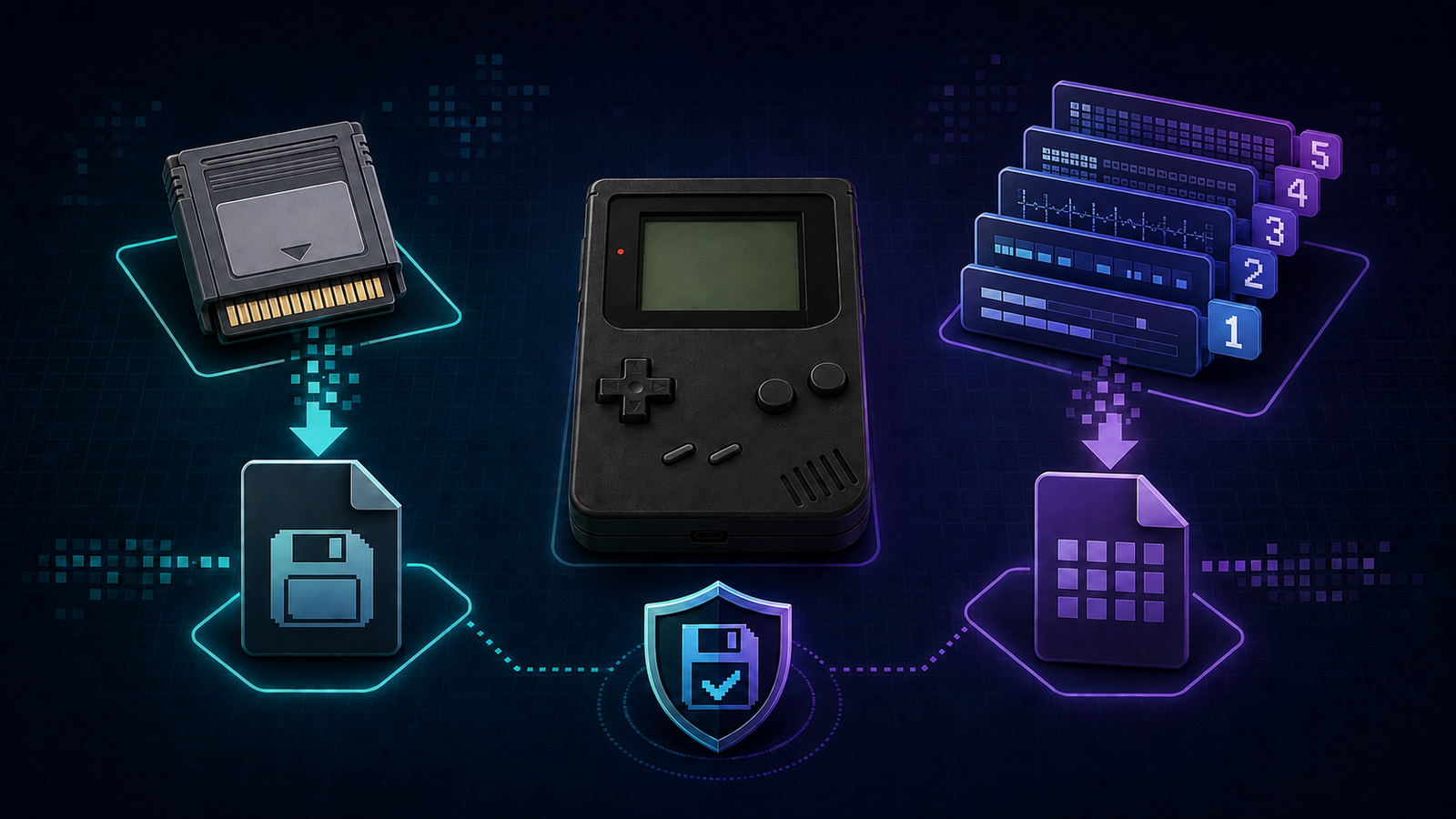

RetroArch gives you two main ways to preserve progress: the game’s normal save system and save states. They may look interchangeable, but they store different information and fail in different ways. Understanding that difference is especially important on retro handhelds, where firmware updates, core changes, and unreliable microSD cards can put hours of progress at risk.
This guide explains what each type of save does, where RetroArch stores it, which one you should trust, and how to move your progress safely to another device.
The short answer
A save file is created through the game’s own save feature. It represents the original console’s battery-backed memory, memory card, EEPROM, or similar storage. RetroArch commonly stores this data as an .srm file, although the exact format depends on the system and core.
A save state is a snapshot of the emulator at a specific moment. It can preserve the game, CPU, memory, audio, and other emulated hardware state—even when the original game did not allow saving there. Save states are convenient, but they are usually more dependent on the exact emulator core and its version.
For important progress, use in-game saves as your primary record and save states as a convenience or temporary backup.
Save files and save states compared
| Feature | Save file | Save state |
|---|---|---|
| Created by | The game’s normal save system | RetroArch and the active core |
| Typical file | .srm, .sav, or memory-card data | .state, .state1, and similar slots |
| What it stores | Persistent game progress | A snapshot of the whole emulated session |
| Portability | Usually better | Often tied to a core and version |
| Main use | Long-term progress | Quick resume, practice, and experimentation |
| Main risk | Not written to storage after an unsafe shutdown | May become incompatible or overwrite newer progress |
How normal save files work
When you save from a game’s own menu or reach an automatic checkpoint, the emulated console writes data as if it were using a cartridge battery, EEPROM, or memory card. The core then exposes that data to RetroArch, which writes it to the configured save directory.
For example, the official Libretro documentation lists .srm cartridge saves for the Snes9x core and separate state files in the state directory. PlayStation cores may also store emulated memory-card data in an .srm file. Other systems can use different extensions or subfolders, so the filename alone does not tell the whole story.
Normal saves are generally the safest option for long-term progress because they contain less emulator-specific information. They are still not invulnerable: a damaged card, a read-only filesystem, or powering off before data is written can lose the latest changes.
How save states work
A save state freezes the emulated machine at one exact moment. Loading it restores that snapshot, letting you resume immediately or retry a difficult section. RetroArch supports numbered slots, so you can keep several states for the same game instead of continually overwriting one file.
The tradeoff is compatibility. A state created by one core may not load in another, even when both cores run the same game. A major core update or a changed core option can also make an old state unreliable. Libretro’s melonDS DS documentation, for example, warns that states from the legacy core cannot be migrated because the format changed. DOSBox Pure similarly notes that states created with different video or CPU settings may not load.
Save states should therefore supplement—not replace—the game’s normal save system.
Where RetroArch stores saves
Open Settings → Directory in RetroArch and check these two entries:
- Save Files: normal game saves and memory-card data.
- Save States: emulator snapshots and numbered state slots.
The location varies by operating system, firmware, and handheld image. Some setups organize files into subfolders by core name or content directory. Before moving anything, write down the displayed paths and inspect the folders while RetroArch is closed.
If your device’s menus and folders are still unfamiliar, start with our RetroArch cores, playlists, and settings guide.
A safe saving routine for retro handhelds
- Save inside the game first. Use the game’s normal save point or menu whenever possible.
- Create a state in a separate slot. Keep more than one slot for long games instead of overwriting the same snapshot every time.
- Close content cleanly. Use RetroArch’s Close Content or Quit RetroArch command so the core has a chance to write save data.
- Do not remove power immediately. Wait a few seconds before shutting down or removing the microSD card.
- Back up both directories. Copy the Save Files and Save States folders to another drive before firmware or core changes.
- Test the backup. Confirm that the copied files exist and have realistic modification dates and sizes.
RetroArch also offers a SaveRAM Autosave Interval setting, but support can vary by core. Libretro’s GBA compatibility documentation notes that some cores only write internal save data when emulation closes normally. A clean exit remains important even when an autosave interval is enabled.
For a complete card-level backup, follow our guide to back up and clone a retro handheld microSD card safely. If the original card appears unstable, review how to choose a reliable replacement microSD card before copying your data.
How to move saves to another device
Start with normal save files. Install or open the same game on the destination device once, then close RetroArch. This creates the expected folder structure and often reveals the filename RetroArch is looking for.
- Confirm the destination Save Files directory.
- Use the same game file name when possible; many cores match saves to the loaded content name.
- Copy the normal save file into the correct folder.
- Launch the game and verify the in-game save.
- Only then test save states, preferably with the same core and core version.
Do not delete the source files until the destination has been tested. If the game opens but your progress is missing, check the save directory, filename, extension, core-specific subfolder, and whether you launched a different disc or playlist entry.
Why loading an old state can erase newer progress
Some save states include the emulated system’s persistent memory. Loading an old state can therefore restore an older memory-card or SaveRAM condition and replace progress made later. The official PCSX ReARMed documentation specifically warns that loading an old state can overwrite memory-card data.
RetroArch includes Settings → Saving → Don’t Overwrite SaveRAM on Loading Save State. Enabling it can reduce this risk, but it does not make states universally compatible. Continue using normal saves and backups.
Common save problems
The game says it saved, but progress disappears
Exit the game cleanly and check whether the save file’s modification time changes. A failing or read-only microSD card may prevent new data from being written.
The save works only with one core
The other core may expect a different filename, folder, or save format. Return to the original core, create a normal in-game save, and research that system’s documented conversion method before renaming files.
A save state stopped loading after an update
Restore the previous core version if your firmware allows it, load the state, create a normal in-game save, and then retry the update. Never update a core when the only copy of important progress is a save state.
Best practice: use both, trust saves more
Save states are one of emulation’s most useful conveniences, but normal game saves are the better foundation for long-term progress and device migration. Use in-game saves regularly, keep a few rotating state slots, exit RetroArch cleanly, and back up both directories before changing firmware, cores, or storage.
If you are setting up a new device, follow our first-time retro handheld setup guide before transferring your library and saves.