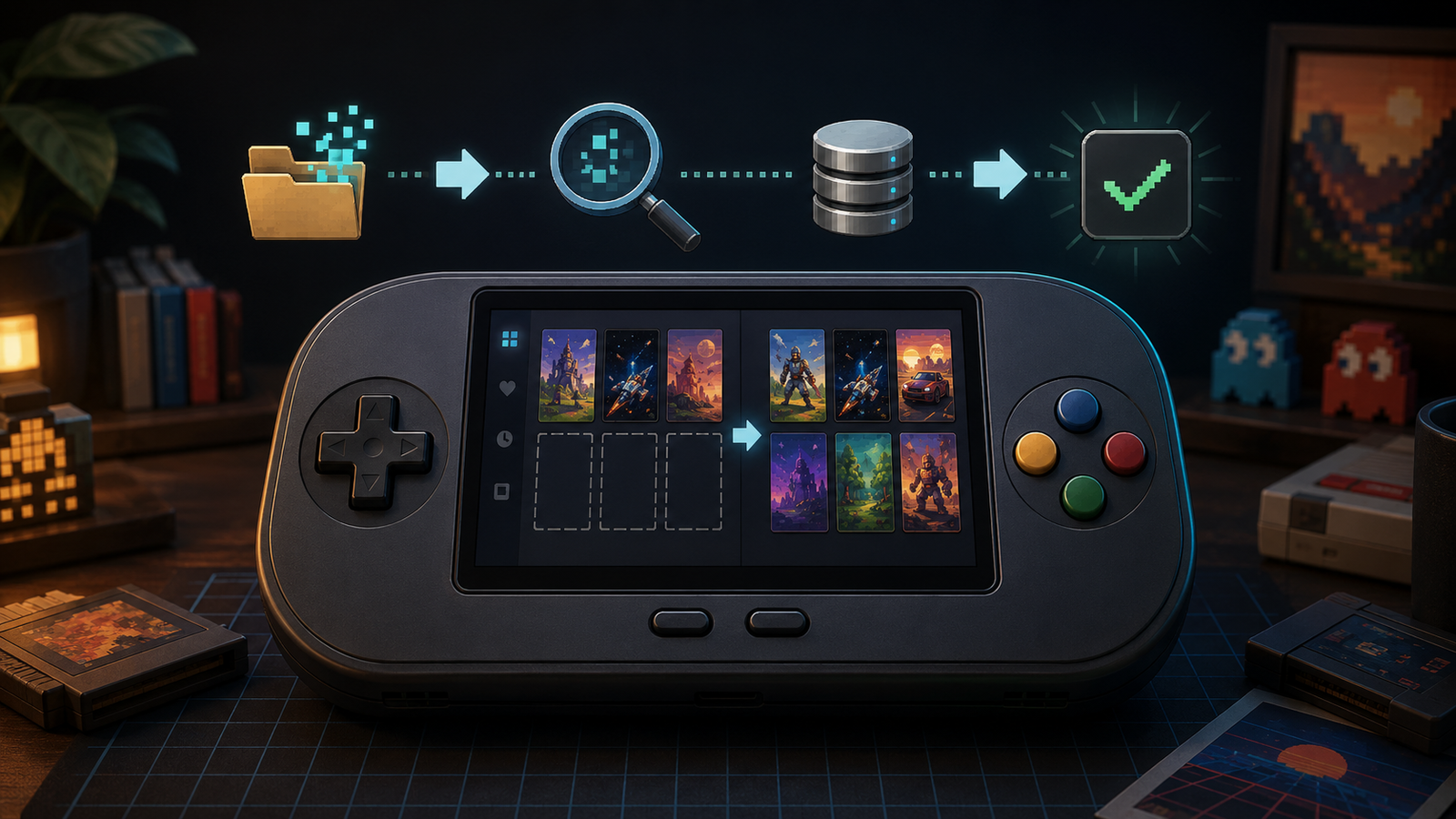

If your RetroArch playlists are not showing games, the files themselves are not necessarily broken. RetroArch’s automatic scanner checks each game against a database, and a playable file can still be excluded when its checksum, internal disc serial, file format, or folder permissions do not match what the scanner expects.
This guide explains how to update the scanner, check your folders, use Manual Scan, fix incorrect playlist names, and restore missing entries without replacing your collection. Use only games and backups you are legally entitled to use.
Why RetroArch Playlists May Be Empty
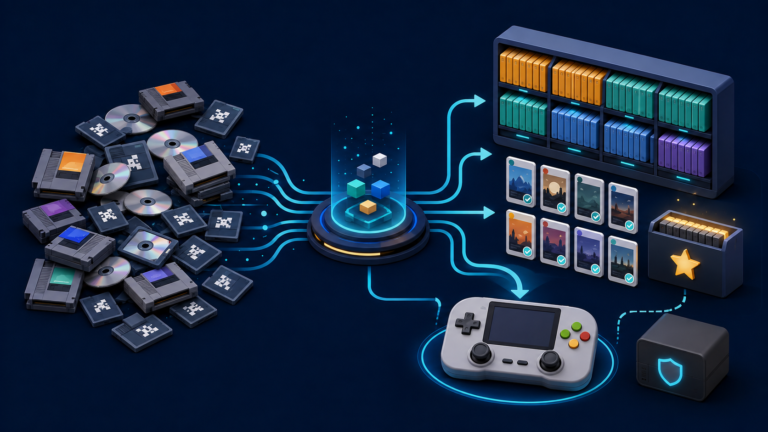
RetroArch playlists are organized lists of games, usually grouped by console. The standard automatic scan does more than find files: it attempts to identify each game using the local Libretro databases.
For cartridge-based games, identification often depends on a CRC checksum. Disc-based games may be matched using an internal serial number. If that information does not match an entry in the installed database, a strict scan can ignore the game even though a compatible core can load it manually.
Common causes include outdated database files, missing core information, modified or translated games, unsupported archive formats, inaccessible storage, incorrect playlist names, and files moved after an earlier scan.
1. Confirm the Game Works Through Load Content
Before changing the scanner, test one missing game directly:
- Open RetroArch and select Load Content.
- Browse to the folder containing the missing game.
- Select the file and choose a compatible core.
- Check whether the game starts normally.
If the game launches, the main problem is playlist identification rather than basic emulation. If it does not launch, verify the file format, core compatibility, and any required firmware. Our guide to retro handheld BIOS files explains where system files belong and why missing firmware can prevent certain games from starting.
2. Update Databases and Core Information
Outdated metadata is one of the easiest causes to fix. From the RetroArch main menu, open Online Updater and run both Update Databases and Update Core Info Files. Wait for each update to finish, then restart RetroArch.
Also confirm that an appropriate core is installed for the system you want to scan. According to the official Libretro documentation, an installed compatible core helps the scanner associate content correctly. Some versions also offer a Scan Without Core Match option when an installed core is not available.
After restarting, select Import Content, choose Scan Directory, and scan the relevant system folder again.
3. Check Folder Access and Storage Permissions
A scanner cannot import files that RetroArch cannot read. This is especially common on Android handhelds, removable microSD cards, and devices that apply restricted storage permissions.
- Confirm the correct microSD card is inserted and mounted.
- Open the folder from Load Content to verify that RetroArch can browse it.
- Grant storage access when your operating system requests permission.
- Check whether the folder path changed after replacing or reconnecting a card.
- Organize games into separate system folders when possible.
If games disappear across the entire device rather than only inside RetroArch, see our broader guide on games not showing up on a retro handheld.
4. Use Manual Scan When Automatic Scanning Misses Games
Manual Scan is often the most practical fix when playable games do not appear in RetroArch playlists. It gives you direct control over the folder, target system, core, and allowed file extensions instead of relying entirely on strict database recognition.
- Open Import Content and select Manual Scan.
- Set Content Directory to the folder containing the games.
- Choose the appropriate System Name, such as the matching Nintendo, Sega, or Sony platform.
- Select the correct Default Core if the option is available.
- Enter relevant File Extensions when your collection contains mixed formats.
- Review database-check settings if your version offers them.
- Choose Start Scan.
Menu labels can vary slightly between RetroArch versions and menu drivers. If a strict database check rejects patched, homebrew, or otherwise unmatched games, a loose or manual scan may still add those files to the playlist. However, unmatched entries may lack database metadata, Explore-menu information, or automatically matched thumbnails.
5. Fix Incorrect System Names and Playlist Labels
A game can be imported successfully but appear under an unexpected playlist. This commonly happens when Manual Scan uses the wrong system name or a custom playlist label that does not match the intended platform.
Check every playlist shown in RetroArch, including recently created custom lists. If the games were added to the wrong system, run Manual Scan again and choose the correct System Name. For custom collections, use clear labels that distinguish the platform or purpose.
Playlist names also affect artwork. RetroArch uses system-specific thumbnail folders, and inconsistent names can prevent cover images from matching. If the games appear but the artwork does not, follow our guide to fixing missing RetroArch thumbnails, box art, and screenshots.
6. Check Archives, Disc Images, and Multi-Disc Games
File organization matters because different cores support different formats. Cartridge games are often distributed as individual files or archives, while disc-based systems may use formats such as CHD, CUE/BIN, or another core-supported image format.
Libretro’s documentation advises against keeping disc-based content inside ZIP archives as a general rule. If a disc game is compressed in an unsupported way, extract or convert it only when you understand the format and have backed up the original files.
For multi-disc collections, avoid scanning every supporting file blindly. Depending on the system and core, an M3U playlist may provide a cleaner launch entry than importing separate disc files. Keep companion files together so existing references remain valid.
7. Repair Entries After Moving or Renaming Files
RetroArch playlists store paths to content. If you rename a folder, replace a microSD card, or reorganize your library, older entries can point to locations that no longer exist. The playlist may still appear while individual games fail to launch or disappear after cleanup.
Start by checking whether the original files still exist at the expected location. If the library was intentionally moved, rebuild the affected playlist using the new folder. Before reorganizing a large collection, create a backup of the storage card and configuration files. Our microSD backup and cloning guide explains how to protect game data and saves.
8. Set the Correct Core Association
If the playlist appears but selecting a game opens the wrong emulator core, review the playlist’s core association. RetroArch provides playlist-management options under Settings > Playlists, where you can choose an appropriate default core for a system.
This does not repair an invalid game file, but it prevents repeated launch prompts and incorrect core selection after importing a collection. Test one entry after changing the association before applying broader changes.
Quick Checklist for Missing RetroArch Playlist Entries
- Confirm the game launches through Load Content.
- Update Databases and Core Info Files.
- Install a compatible core and restart RetroArch.
- Verify storage access and the correct game folder.
- Use Manual Scan for unmatched or modified content.
- Select the correct system name and file extensions.
- Check disc-image formats and supporting files.
- Rebuild playlists after moving or renaming your collection.
- Fix artwork separately if entries appear without thumbnails.
Frequently Asked Questions
Why does RetroArch load a game but not add it to a playlist?
The automatic scanner may reject a game when its CRC checksum or internal disc serial does not match the installed database. The file can still be playable through a compatible core. Update the databases or use Manual Scan.
Do I need a separate playlist for every console?
No. RetroArch commonly creates system-specific playlists, but custom playlists can group games across multiple platforms. Correct platform associations still matter for metadata, core selection, and thumbnails.
Will scanning delete my games or save files?
Scanning builds or updates playlist entries; it does not normally delete the original game files. However, avoid deleting folders or replacing playlist files until you have verified your backups.