
The microSD card is one of the most important—and most overlooked—parts of a retro handheld. It stores the operating system, emulator settings, box art, save files, and often the entire game library. A weak or counterfeit card can cause missing games, corrupted saves, failed updates, or a handheld that suddenly refuses to boot.
This guide explains how to choose a reliable replacement card without paying for specifications your handheld cannot use. It also covers capacity, speed ratings, single-card and dual-card systems, and the safest way to move from the original card.
Why replacing the included microSD card is often a good idea
Many inexpensive retro handhelds ship with an unbranded or unfamiliar microSD card. It may work initially, but its long-term reliability is difficult to judge. Since the card can hold both the firmware and personal save data, failure can mean more than reinstalling a few games.
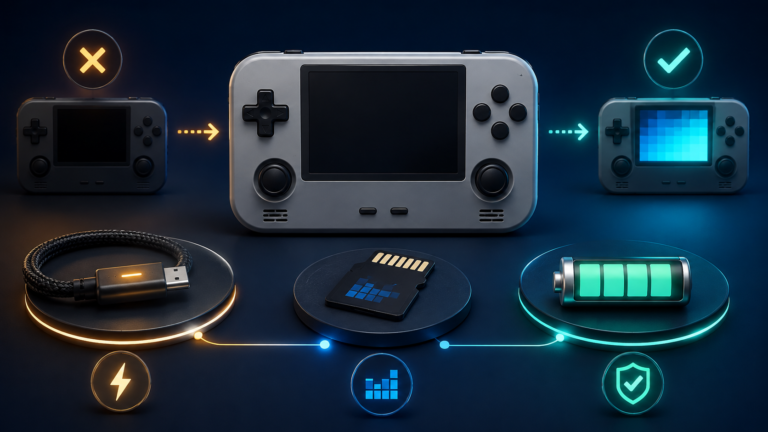
You do not need to throw the original card away. The safest approach is to preserve it as a fallback, create a complete backup, and move the system to a reputable replacement. Our microSD backup and cloning guide explains how to create an image before making changes.
The microSD specifications that actually matter
Capacity: how much storage do you need?
Capacity should match the systems you plan to emulate, not the largest card available. Older cartridge-based libraries use relatively little space, while disc-based systems can consume tens or hundreds of gigabytes.
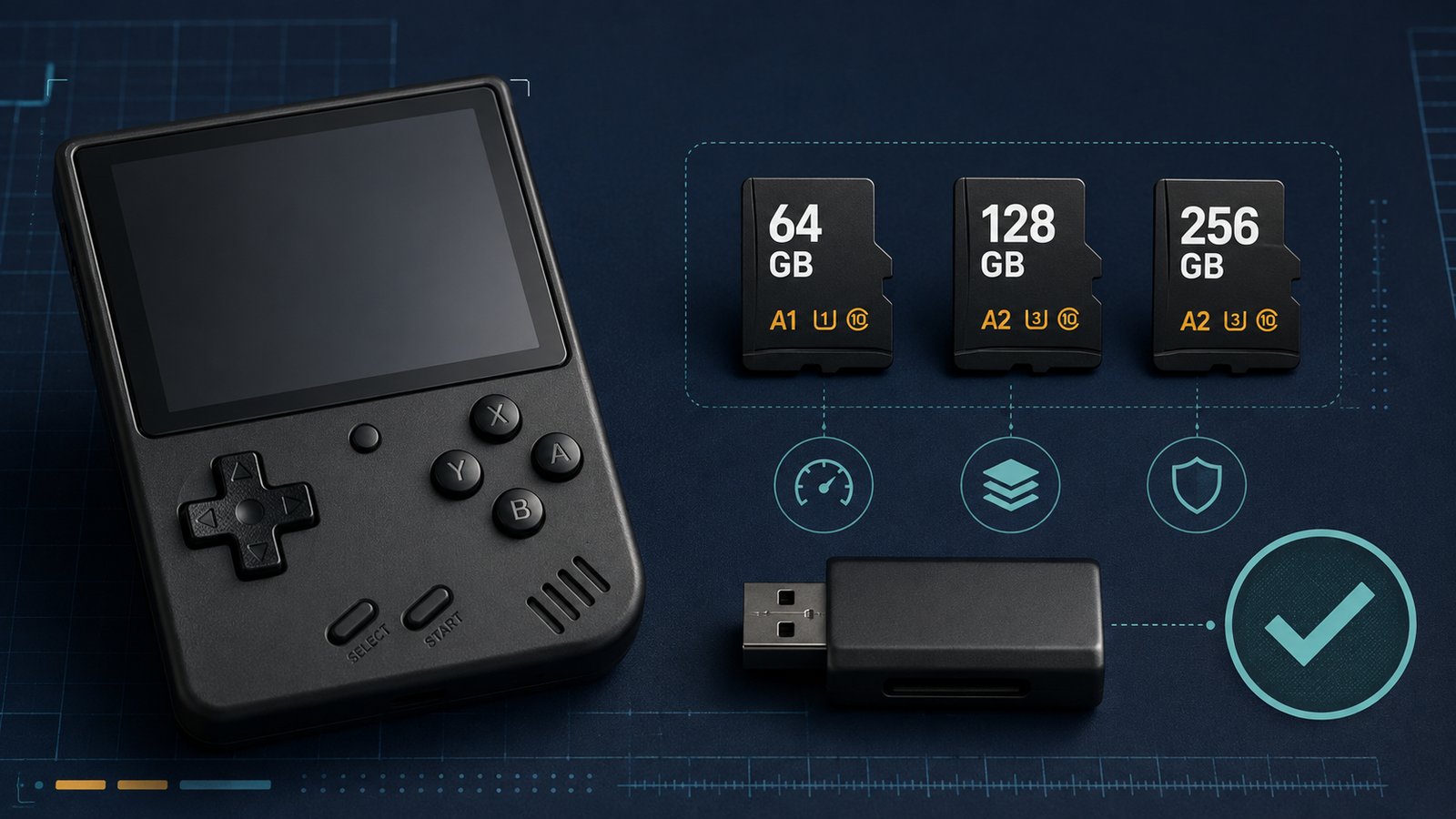
- 32 GB: Suitable for firmware, a carefully selected 8-bit and 16-bit library, and a modest number of arcade games.
- 64 GB: A practical minimum for mixed classic systems and some disc-based games.
- 128 GB: The best general-purpose choice for many handheld owners. It provides room for box art, saves, updates, and a curated multi-system library.
- 256 GB or more: Useful for larger PlayStation, Dreamcast, PSP, or similar disc-based collections, provided the handheld and firmware support the capacity.
Always check the documentation for your exact handheld and firmware. Some devices, card readers, and older operating systems have capacity or file-system limitations. Buying a larger card does not guarantee that the system will recognize it.
Speed Class, UHS, and Video Speed Class
A microSD label may show several symbols: Class 10, U1, U3, V10, V30, and others. These ratings primarily describe minimum sequential write performance. The SD Association’s Speed Class documentation explains that these classes are designed to guarantee minimum performance under defined conditions.
For most retro handhelds, a genuine Class 10 or U1 card is sufficient. Buying a U3 or V30 card is not harmful, but it rarely makes emulation faster because the handheld’s card reader and processor are usually the limiting factors. Extremely fast cards only reach their advertised performance when the host device supports the corresponding bus mode.
A1 versus A2 application performance
A1 and A2 ratings focus on random input/output performance, which is more relevant to operating systems and applications than large sequential file transfers. That makes these ratings useful when the handheld boots its firmware directly from the card.
The SD Association notes that A2 adds features such as command queuing and cache, but full A2 performance requires support from the host device. Many retro handhelds do not provide that support. A reputable A1 card is therefore often an excellent value, while an A2 card is reasonable when the price difference is small.
Brand and seller reliability
The name printed on the card matters less than whether the product is genuine. Counterfeit cards may report a false capacity: a computer appears to see 128 GB, but data becomes corrupted after the real storage limit is exceeded.
Choose an established manufacturer and buy from the manufacturer, an authorized retailer, or a seller with a clear return policy. SanDisk, Samsung, Kingston, Lexar, and other established storage brands offer suitable cards, but every brand can be counterfeited. Be cautious when a price is far below the normal market range.
Single-card and dual-card handhelds
Before buying, check how your device uses storage.
Single-card systems
A single-card handheld stores firmware and games on the same card. Replacing it normally requires flashing a compatible firmware image or cloning the original card. A simple drag-and-drop copy may not preserve hidden partitions or boot information.
If this is your first time preparing the device, follow our first-time retro handheld setup guide before modifying the original storage.
Dual-card systems
Dual-card handhelds typically use one card for the operating system and another for games. This design makes maintenance easier: you can reinstall or change firmware without rebuilding the game library.
A smaller, reliable card is usually enough for the operating-system slot. The game-library slot can use a larger card, depending on the supported capacity. Do not assume that both slots accept the same formats or sizes; follow the documentation for the firmware you are using.
How to prepare a replacement card safely
- Back up the original card. Create a full disk image when possible, and separately copy saves, BIOS files, configuration folders, and legally obtained game files.
- Confirm the correct firmware. Firmware images are often specific to a device revision or screen panel. Flashing an image for a similar-looking model can produce a black screen or broken controls.
- Use a compatible card reader. An old reader may not handle SDXC cards correctly. If the card disconnects or writes extremely slowly, test another reader or USB port.
- Format or flash as instructed. If the firmware documentation asks for a blank card, the SD Association recommends its official SD Memory Card Formatter for standards-compliant formatting. If you are writing a complete firmware image, the imaging tool will normally recreate the required partitions.
- Eject the card properly. Wait for the write process to finish and use the operating system’s eject function before removing the card.
- Test before expanding the library. Boot the handheld, launch several systems, create a save, restart, and confirm the save still loads. Add the full library only after the basic setup is stable.
If games fail to appear after the move, check folder names, supported file extensions, archive formats, and playlist refresh settings. The troubleshooting steps in Why Games Aren’t Showing Up on Your Retro Handheld cover the most common causes.
Common microSD buying mistakes
- Buying capacity before checking compatibility: A 512 GB card is wasted if the firmware only handles smaller cards reliably.
- Choosing by advertised read speed alone: The handheld may never approach that speed, and reliability matters more than a benchmark peak.
- Assuming A2 is always faster: Without host support, an A2 card may perform similarly to A1.
- Copying only visible files: Boot partitions and hidden data may be required on single-card systems.
- Formatting before making a backup: The included card may contain device-specific files that are difficult to replace.
- Moving BIOS files without preserving folder structure: Emulators may require exact locations and filenames. See our BIOS files guide for a safe explanation.
What microSD card should most people buy?
For a typical Linux-based retro handheld, a genuine 128 GB UHS-I card with a Class 10/U1 and A1 rating is a sensible starting point. It offers enough capacity for a curated multi-system library without paying heavily for performance the device may not use.
For a dual-card system, consider a smaller high-quality card for firmware and a 128 GB or 256 GB card for games. For a single-card device, choose the final capacity before flashing so you do not need to repeat the migration soon.
The best card is not necessarily the fastest one. It is the genuine, compatible card that you have backed up and tested.
Frequently asked questions
Will a faster microSD card improve emulator performance?
Usually not in a noticeable way. A better card can reduce menu loading, artwork delays, and file-copy time, but frame rate and emulation accuracy depend mainly on the processor, emulator, core, and settings.
Can I copy everything from the old card with File Explorer?
That may work for a separate game card, but it is unreliable for a bootable system card. A full image or a clean firmware installation is safer because normal file copying does not reproduce every partition and boot record.
Should I format the card as FAT32 or exFAT?
Use the format required by your device or firmware. Some systems require FAT32 even for larger cards, while others support exFAT. Do not choose based only on the card’s capacity.
Should I keep the original card?
Yes. Label it, store it safely, and avoid using it as everyday storage. It can help recover device-specific files or confirm the original partition layout later.
Final checklist
- Check the handheld’s maximum supported capacity.
- Buy a genuine card from a trustworthy seller.
- Prefer reliability over extreme speed ratings.
- Back up the original card before changing anything.
- Use the correct firmware and file system.
- Test booting, games, saves, and shutdown before relying on the new card.
A reliable microSD card will not make weak hardware emulate demanding systems, but it can prevent many of the failures that make retro handhelds frustrating. Choose a compatible capacity, preserve the original card, and verify the replacement before trusting it with your saves.