
A BIOS file is one of the least visible parts of a retro handheld setup, yet it can decide whether a game starts normally, falls back to imperfect emulation, or returns to the menu with a black screen. The confusing part is that BIOS requirements vary by system, emulator core, and operating system.
This guide explains what BIOS files do, how to find the folder your handheld actually uses, and how to verify a file without guessing. It does not provide copyrighted BIOS downloads. Use files dumped from hardware you own and follow the laws that apply where you live.
What is a BIOS file in emulation?
On original hardware, the BIOS or firmware contains low-level instructions used during startup and system operation. An emulator must reproduce that behavior. Some emulators include a replacement implementation called high-level emulation, or HLE. Others need an external firmware file, and some work without one but become more compatible when a valid BIOS is present.
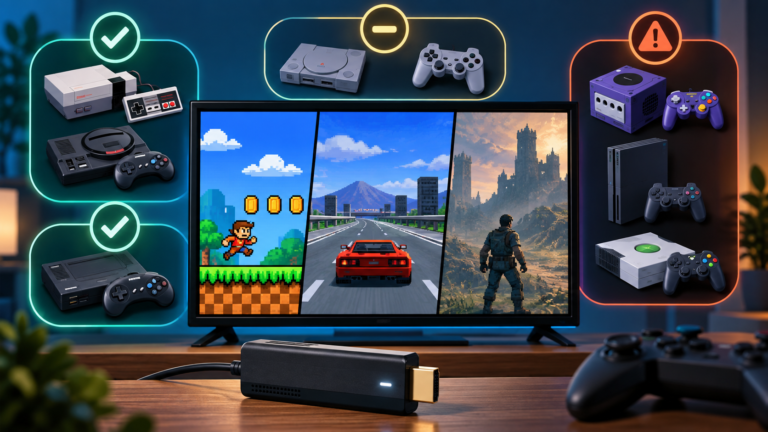
That is why two systems on the same handheld can behave differently. An SNES game may start without any extra firmware, while a PlayStation, Sega CD, Dreamcast, or Neo Geo title may depend on a specific file. Even within one system, requirements can change when you select a different emulator or RetroArch core.
Do all retro systems need BIOS files?
No. Many cartridge-based systems can run without external BIOS files. Other platforms require them, and some treat them as optional. For example, the official Libretro documentation explains that PCSX ReARMed can fall back to an HLE BIOS, but that this can reduce compatibility and cause problems such as black screens or memory-card issues.
Do not copy a huge BIOS collection simply because a checker reports missing files. A frontend may list firmware for systems you never use, and optional files are not automatically necessary. Start with the systems you intend to play, then check the documentation for the emulator core selected on your device.
Before you change anything
- Back up the original microSD card or at least its BIOS, configuration, saves, and ROM folders.
- Identify the operating system, such as a stock Linux image, Batocera-based system, Knulli, ArkOS, or another custom firmware.
- Write down the emulator or core used by the problem system.
- Keep original filenames and extensions visible on your computer.
If the handheld is new, complete the basic safety steps in our first-time retro handheld setup guide before modifying its card.
Step 1: Identify the emulator that needs the BIOS
The frontend you see is not always the emulator doing the work. EmulationStation-style menus can launch RetroArch cores or standalone emulators. Open the advanced settings for the affected system and note the selected emulator and core. If the option is set to Auto, check the firmware documentation or launch logs to learn what was chosen.
This matters because the same console may use different filenames or folder layouts in different emulators. A BIOS that is correct for one core is not guaranteed to be detected by another.
Step 2: Find the real System/BIOS directory
In RetroArch, open Settings → Directory → System/BIOS and read the path shown on the right. That is the directory RetroArch is currently checking. Do not assume that a folder named bios elsewhere on the card is the active location.
Some cores expect files directly in the system directory; others require a named subfolder. Batocera normally uses the bios folder in its SHARE partition and provides a built-in Missing BIOS checker. Other handheld firmware may use a second card or a different partition. Follow the documentation for your exact firmware version.
Step 3: Match the filename exactly
A correct file with the wrong name may be treated as missing. Compare the filename, extension, capitalization, and required subfolder with the core documentation. Linux filesystems are often case-sensitive, so bios.bin and BIOS.BIN can be different names.
Also make sure your computer is not hiding extensions. A file that appears to be firmware.bin might actually be firmware.bin.zip or firmware.bin.bin. Do not rename a random download just to match the expected name; the contents must also be correct.
Step 4: Verify the checksum
A checksum is a short digital fingerprint calculated from a file. BIOS documentation commonly provides an MD5 value. If your file produces the same value, it is the expected dump. If it does not match, the file may be a different revision, incorrectly dumped, or corrupted.
- Find the required hash on the official page for your emulator core.
- Calculate the MD5 checksum with a trusted tool built into your operating system or a reputable local utility.
- Compare every character; capitalization of the displayed hash itself does not matter.
- If it differs, do not assume the file is safe or compatible merely because its name looks right.
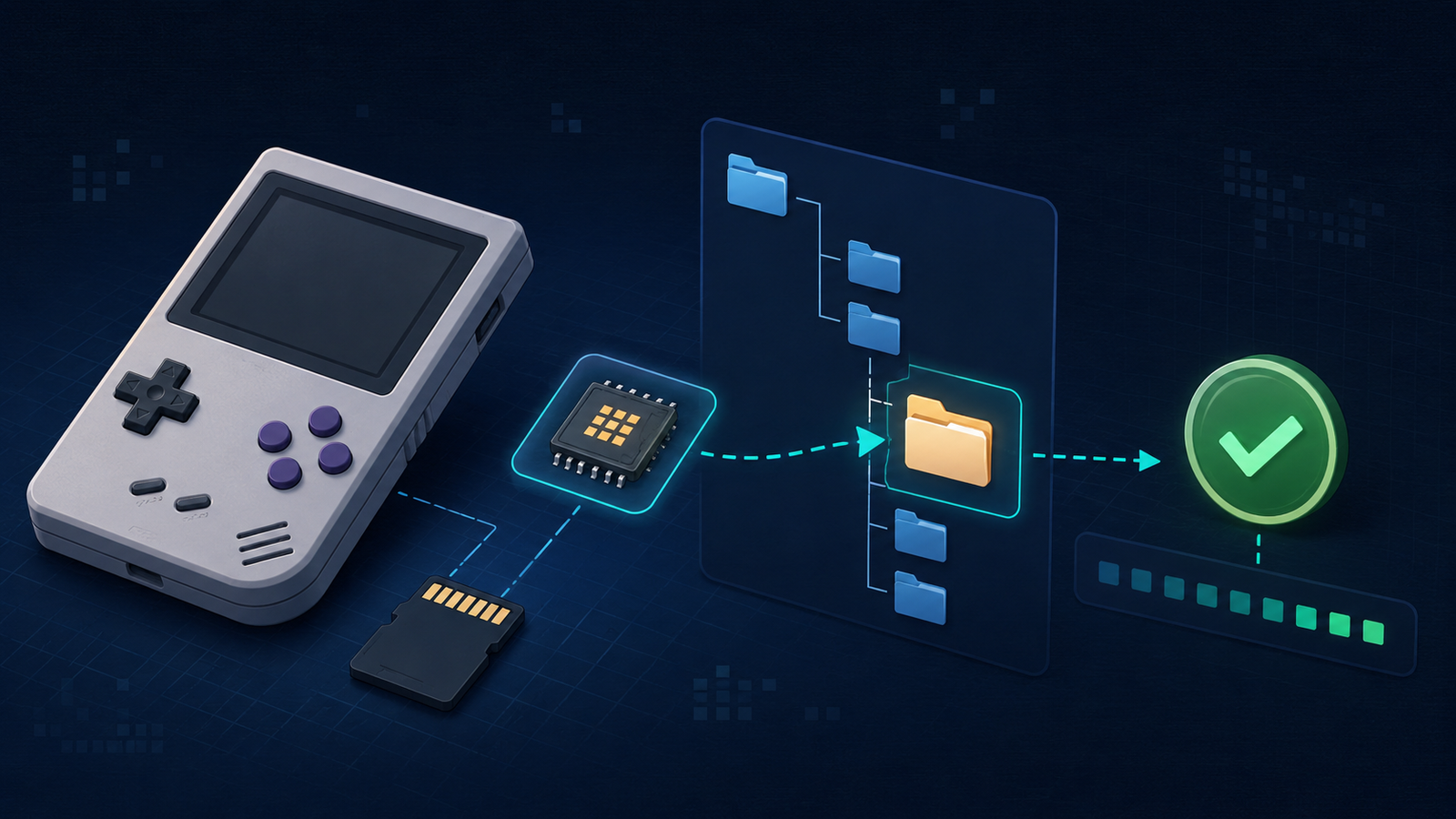
Checksums are especially useful when a BIOS is detected but games still fail. Libretro identifies location, exact name, and matching hash as the three essential checks.
Step 5: Copy safely and rescan
Shut down the handheld through its menu before removing the microSD card. Copy the verified BIOS file to the required directory, safely eject the card, and restart the device. Then refresh the game list or restart the frontend. If the firmware includes a BIOS checker, run it again.
Do not format the card or reinstall firmware just because one BIOS is missing. Those actions add risk and rarely fix a filename, folder, or checksum problem.
How to tell whether RetroArch recognized the BIOS
Launch a game with the relevant core, open the RetroArch Quick Menu, and look for the core information page. Depending on the version and interface, required firmware may be listed as present or missing. A successful boot alone is not definitive because an emulator may silently use HLE.
For Batocera-style systems, use the Missing BIOS check and review the launch logs when a game immediately returns to the menu. Official Batocera troubleshooting documentation notes that these logs often identify a missing BIOS or unsupported game format directly.
Common BIOS mistakes
- Wrong folder: the file is on the card, but not in the directory used by the active emulator.
- Wrong core: instructions were followed for a different emulator than the one selected.
- Wrong filename or case: the contents may be correct, but the core cannot match the name.
- Compressed firmware: a ZIP or 7Z archive was copied when the core expects the extracted file.
- Bad checksum: the file is corrupt or is a revision the core does not support.
- Unnecessary subfolders: files were organized into folders that the core does not scan.
- No restart: the frontend has not reloaded its configuration after the copy.
A fast troubleshooting order
When a game fails after adding BIOS files, check in this order: active emulator, BIOS directory, exact filename, required subfolder, checksum, and launch log. Test one known-compatible game before changing anything else. Multiple simultaneous changes make it difficult to identify the actual fix.
If the entire console or game list is missing rather than a game failing to launch, follow our guide to fix games that are not showing up on a retro handheld. That problem is more often related to folder names, supported formats, card mounting, or a game-list refresh.
Keep a clean BIOS backup
Once the setup works, copy the BIOS directory to your computer and keep a simple note recording the firmware version and card layout. Preserve the verified filenames instead of reorganizing them. A clean backup makes a future microSD replacement or firmware migration much faster.
For a complete recovery copy, follow our retro handheld microSD backup and cloning guide, which covers full-card images, checksums, and restoration testing.
Final checklist
- You know which emulator or core is active.
- The file is in the directory that emulator actually scans.
- The filename, extension, capitalization, and subfolder match the documentation.
- The checksum matches a known valid value.
- The frontend has been restarted or rescanned.
- Your working BIOS folder is backed up.
BIOS troubleshooting becomes much simpler when you stop treating the file as a mysterious download and verify three facts: location, name, and hash. With those confirmed, most “missing firmware” problems can be solved without reinstalling the handheld or changing unrelated settings.