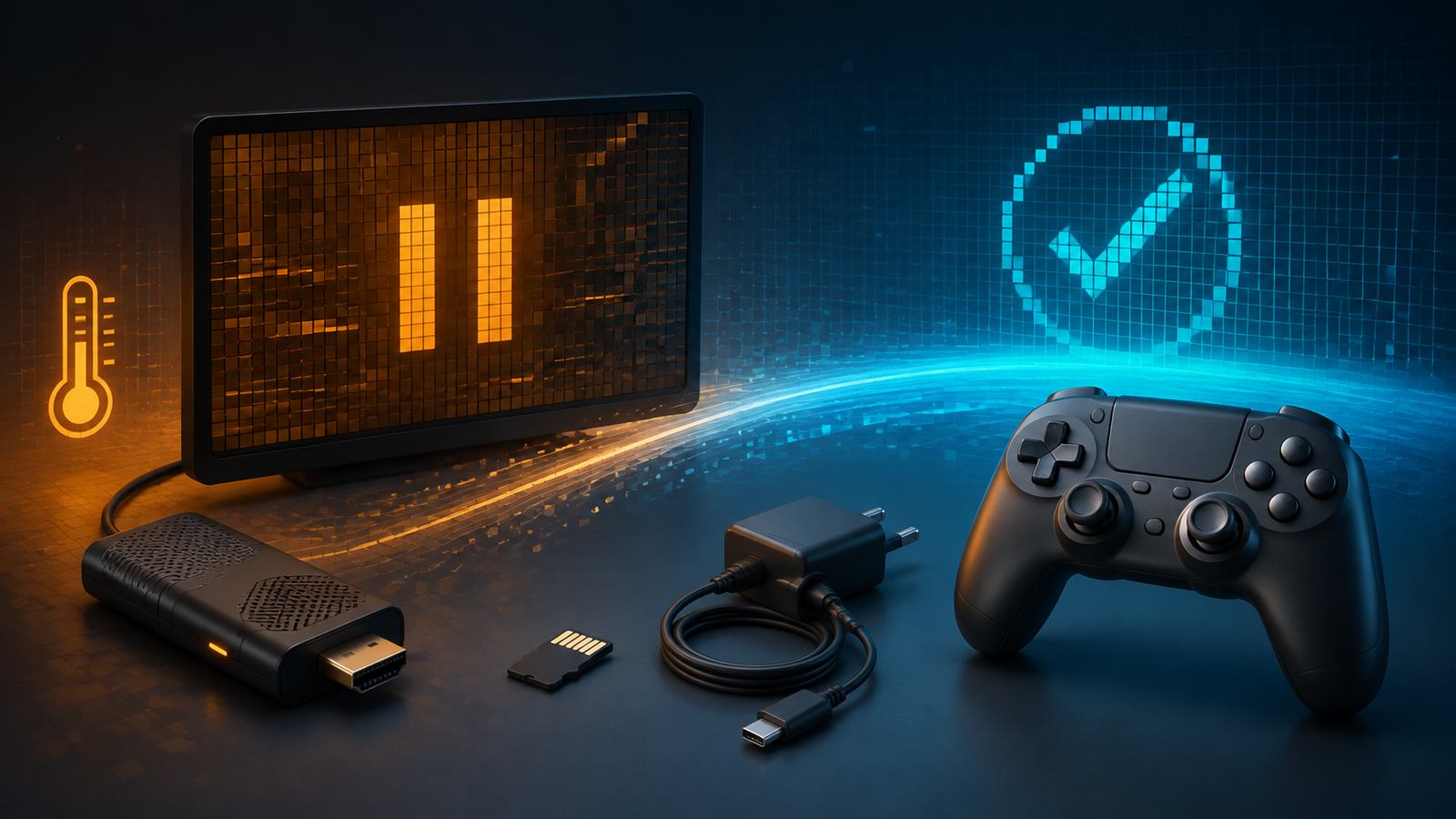

If your retro game stick keeps freezing, do not immediately format its card. A freeze can come from unstable power, trapped heat, a failing microSD card, a damaged game file, or demanding emulator settings.
The fastest diagnosis is to note exactly where the problem occurs. A stick that freezes in the main menu has a different fault from one that locks only after launching a particular PlayStation game. Work from the outside in: power and temperature first, then storage, content, and emulator settings.
First, identify the type of freeze
Before changing anything, reproduce the problem once and record what happens:
- The entire menu freezes: suspect power, heat, the system card, or a background device.
- Only one game freezes: suspect that game file, BIOS requirement, emulator, or core option.
- Every game from one console freezes: check that system’s emulator, BIOS, and format.
- The picture freezes but audio continues: investigate video output, renderer, resolution, and synchronization settings.
- Audio stutters and gameplay slows without fully locking: the system may be overloaded rather than crashed.
- The screen goes black or the TV loses signal: use the separate guide for a retro game stick with no HDMI signal.
Note whether the freeze appears immediately, after the stick warms up, or after adding games. Timing is an important clue.
1. Perform one clean restart
If the interface no longer responds, wait briefly to make sure it is not loading a large game. Try the documented exit or shutdown command if it still accepts input. If it is completely locked, disconnect power once, wait at least 20 seconds, and reconnect only the required power, HDMI connection, controller receiver, and original system card.
Repeatedly cutting power can make storage problems worse when the card is being written. Do not create a cycle of rapid unplugging and rebooting. After the restart, test the menu before launching a game.
2. Check the power supply and cable
Use the voltage and current specification printed on the stick, packaging, or exact model manual. The supplied or manufacturer-recommended adapter and a short, known-good cable are the safest starting point. A television USB port may power one stick adequately but provide unstable or insufficient power for another, especially when a receiver or USB accessory is attached.
Power instability can appear as random freezes, reboots, card errors, or a black screen. Small single-board systems may throttle or become unstable when input voltage drops, so correct the power path instead of masking the symptoms.
Do not substitute a charger merely because its connector fits. Match the device specification and avoid damaged, loose, or unusually long cables.
3. Test for trapped heat
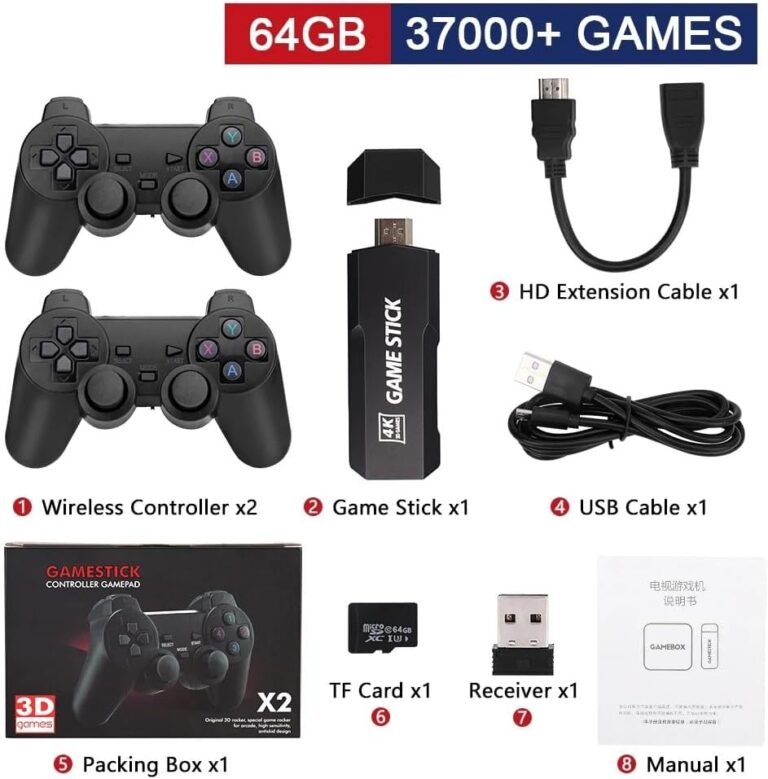
Power the stick off and allow it to cool. Make sure its vents are open and it is not pressed between the television and a wall, wrapped in cables, or covered by another device. Use the included HDMI extension when it allows the stick to sit in a better-ventilated position without stressing the connector.
Then test from a cold start. If it works normally and freezes only after warming up, heat is a stronger suspect. Avoid drilling the case, attaching an unknown fan, or opening a device under warranty. Disconnect a stick that becomes painfully hot, smells burnt, or shows melted plastic.
4. Remove unnecessary accessories
Disconnect extra controllers, USB hubs, Wi-Fi adapters, keyboards, and storage devices. Keep only what the stick needs to boot and one controller. Batocera’s official troubleshooting guidance also recommends removing unnecessary devices while isolating freezes and other system faults.
If the system becomes stable, reconnect one accessory at a time. A weak power supply, unsupported adapter, or faulty USB device can create symptoms that look like an emulator crash.
5. Separate a system-wide freeze from one bad game
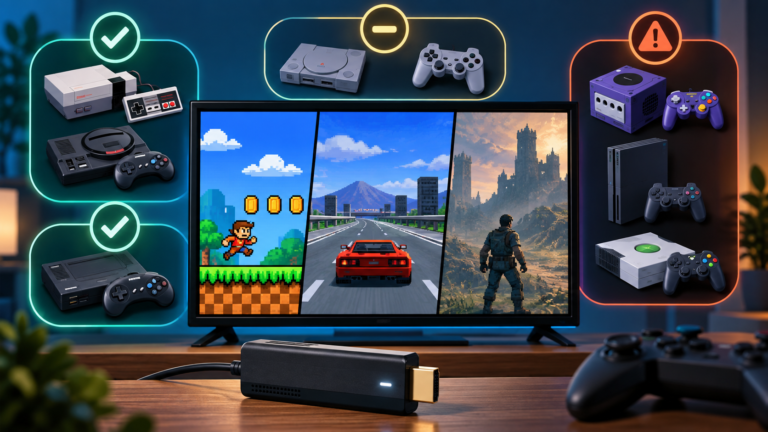
Test one lightweight, previously working game from an older system such as NES or Genesis. Then test the title that normally freezes.
- If the menu and lightweight games are stable, the hardware is probably completing normal operation.
- If one file always freezes at the same point, replace it only with a verified legal backup in the correct format.
- If every title from one platform fails, review that emulator’s BIOS, supported formats, and default core.
- If all systems freeze, return to power, heat, and card health.
Do not assume that a large advertised game library means every file is valid. Duplicate, incomplete, incorrectly compressed, or mismatched arcade ROMs may fail even when the system is healthy.
6. Restore performance-heavy settings to defaults
Low-cost game sticks have limited CPU, GPU, and memory resources. Shaders, high output resolutions, rewind, run-ahead, aggressive frame delay, and enhanced internal resolution can add substantial work. Libretro documents run-ahead as calculating additional frames in the background, while Batocera treats latency and performance options as features that must be supported by the selected core and hardware.
For the affected system or game, disable advanced latency features, heavy shaders, rewind, and enhanced resolution. Return the renderer and core options to their defaults, then test again. Change one setting at a time so you can identify the cause.
A slowdown is not always a true freeze. If the frame counter continues moving or audio crackles while the image advances slowly, reduce workload before treating it as storage failure.
7. Check free space and protect the microSD card
A nearly full or failing card can interfere with configuration saves, thumbnails, save states, and temporary files. If the card is readable on a computer, back up games, saves, configurations, and the original image before repairing anything. Do not accept an automatic format prompt simply because Windows cannot read a Linux partition.
The SD Association notes that loss or variation of power during writes can contribute to file-system corruption. This is why hard power cuts and weak power delivery should be addressed before repeatedly repairing the card.
Use BootPixel’s process for adding games to a retro game stick without breaking its SD card. Leave unused space and safely eject the card after copying files.
8. Test a fresh card without destroying the original
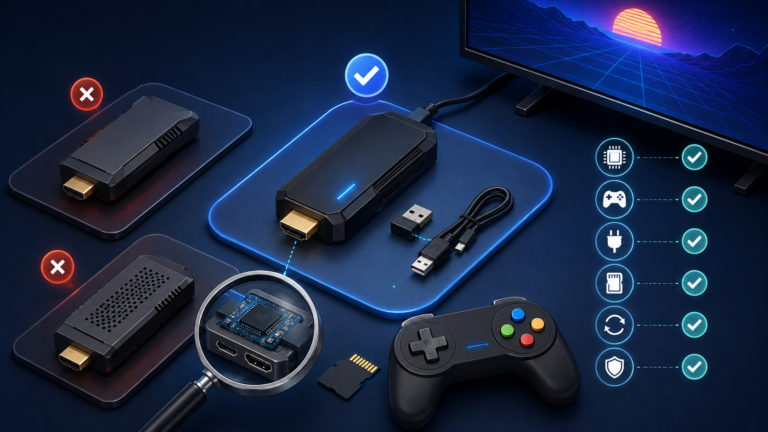
If freezes affect the menu and many games, test a reputable replacement card. Keep the original untouched. Obtain the exact firmware image for the stick’s model, board revision, memory size, and controller configuration from its manufacturer or seller support.
Similar-looking game sticks can contain different processors, Wi-Fi chips, display settings, or controller files. A random image for an identical shell can fail to boot or break controller support. Write the correct image with an imaging tool; do not copy the image file onto the card as an ordinary file.
9. Check logs when the software exposes them
Generic game-stick interfaces may hide diagnostic tools, but systems based on RetroArch or Batocera can record useful logs. Libretro documents how to generate RetroArch logs, and Batocera identifies separate logs for EmulationStation and emulator launches.
A log may reveal a missing BIOS, unsupported format, read error, or emulator crash. Read-only inspection is safer than deleting configuration folders at random. If the device provides no log access, the pattern of the freeze—one game, one system, or everything—remains the most useful evidence.
10. Do not confuse controller failure with a frozen system
If animation and music continue but buttons do nothing, the game stick may still be running. Check the controller batteries, USB receiver, and player assignment using the guide for a retro game stick controller that is not working.
A truly frozen system stops updating the interface, audio, or clock. Testing with a second supported controller can help, but do not remap controls while diagnosing a suspected crash.
Quick diagnosis table
| Symptom | Most useful first check | Avoid |
|---|---|---|
| Freezes in the menu | Power, cooling, accessories, and system card | Changing every emulator |
| Freezes only after warming up | Ventilation and correct power supply | Opening a hot device immediately |
| One game always freezes | Game file, format, BIOS, and core defaults | Reflashing the whole system first |
| One console library freezes | Platform emulator, BIOS, and core options | Blaming the controller receiver |
| Slow motion with crackling audio | Disable shaders, rewind, run-ahead, and high resolution | Treating slowdown as total hardware failure |
| Animation continues but input stops | Controller power, receiver, and player assignment | Formatting the system card |
The safest troubleshooting order
- Record whether the menu, one game, one system, or everything freezes.
- Restart once with only essential accessories.
- Use the specified power adapter and a known-good cable.
- Cool the stick and improve ventilation.
- Test a lightweight known-working game.
- Reset only the affected emulator’s advanced performance options.
- Back up the readable card and check its free space.
- Test the exact official image on a separate reliable card.
- Inspect logs when the system makes them available.
Treat power, heat, storage, content, and emulator settings as separate layers. Preserve the original card, change one variable at a time, and stop using hardware that shows abnormal heat or physical damage.