
Affiliate disclosure: This article contains an Amazon affiliate link. BootPixel may earn a commission from qualifying purchases at no additional cost to you. Publicidade. Como associado da Amazon, eu ganho com compras qualificadas.
A retro game stick may advertise “4K,” tens of thousands of games, and support for many classic systems. None of those claims tells you whether a particular game will run correctly. The real result depends on the processor, graphics support, memory, emulator core, firmware, cooling, power supply, and even the individual game.
This guide explains what a typical low-cost HDMI retro game stick can realistically emulate. It is not a compatibility promise for every model. Many sellers reuse names such as GD10, M8, M15, and X2 across different hardware revisions, so two units with similar packaging may perform differently.
Quick answer
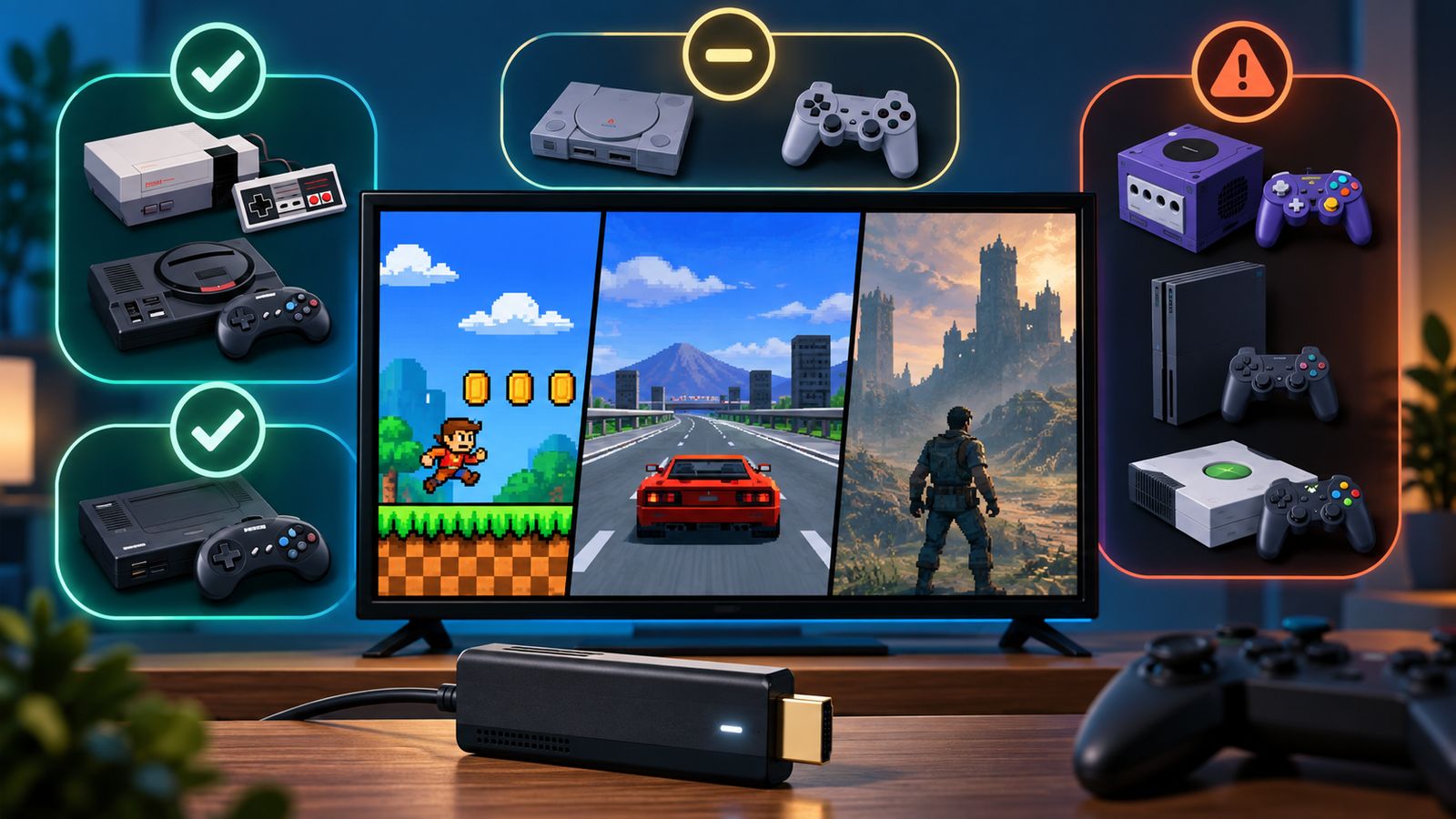
Most budget game sticks should be safest with 8-bit and 16-bit consoles. PlayStation 1 is often achievable, although demanding games and poor emulator settings can still cause problems. Nintendo 64, Dreamcast, PSP, Nintendo DS, Saturn, and arcade performance varies much more. PlayStation 2, GameCube, and Wii should not be assumed unless the seller identifies capable hardware and provides credible, game-specific evidence.
| System group | Realistic expectation on a budget stick | Main limitations |
|---|---|---|
| Atari, NES, Master System, Game Boy | Usually the safest group | Bad ROM sets, controller mapping, scaling, and audio configuration |
| SNES, Genesis/Mega Drive, PC Engine, Game Boy Advance | Generally reasonable | Special-chip games and accuracy-focused cores can require more performance |
| PlayStation 1 | Often playable | BIOS, disc format, core choice, audio sync, and demanding 3D games |
| Nintendo 64, Dreamcast, PSP, Nintendo DS, Saturn | Mixed; verify game by game | CPU speed, graphics API, emulator maturity, controls, and firmware |
| PlayStation 2, GameCube, Wii | Do not assume support | Much higher CPU/GPU requirements and limited support on low-cost ARM hardware |
Why the model name is not enough
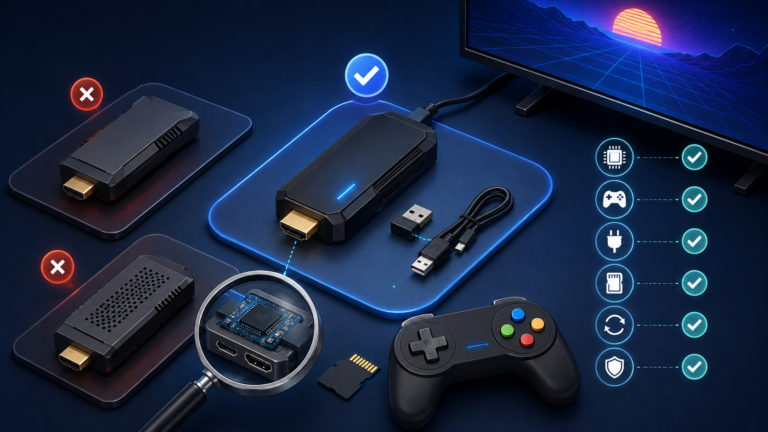
The words printed on the box rarely identify the components that determine emulation performance. Before comparing game counts, look for the processor model, number of CPU cores, architecture, RAM, graphics API support, operating system, emulator version, and exact hardware revision.
RetroArch itself does not emulate consoles. It loads separate programs called cores. The official Libretro documentation notes that multiple cores may exist for one console and that higher accuracy can come with a performance cost. A weak device may run a lightweight core acceptably while struggling with a more accurate alternative.
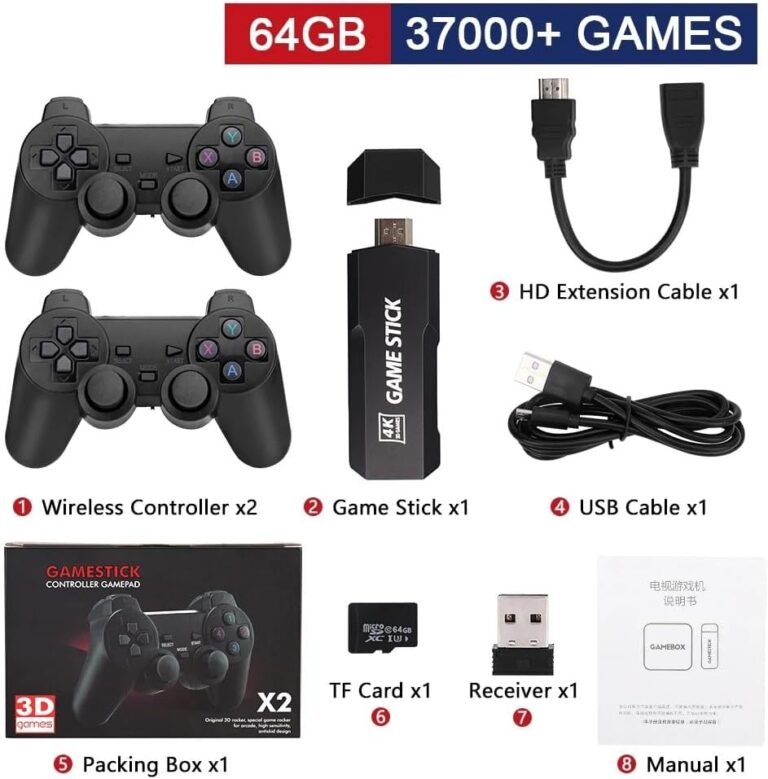
This is why two sticks with the same storage capacity can behave very differently. A 64GB card only describes space. It does not make the processor faster, improve the controllers, or guarantee that the included software is configured correctly.
8-bit systems: usually the safest choice
Atari-era consoles, NES/Famicom, Master System, Game Gear, Game Boy, and Game Boy Color are normally the least demanding targets. Even here, “supported” does not mean every included file is good. A game may fail because it is corrupted, incorrectly named, from the wrong region, or paired with the wrong emulator core.
Image quality can also disappoint if the stick stretches a 4:3 game to widescreen or applies poor filtering. Correct aspect ratio, integer scaling, and suitable shaders matter more than a 4K label for these systems.
16-bit systems and Game Boy Advance: generally reasonable
Genesis/Mega Drive, most SNES games, PC Engine, Neo Geo, and Game Boy Advance are realistic targets for many inexpensive devices. The important word is “most.” Certain SNES cartridges used enhancement chips, arcade titles vary widely, and accuracy-focused emulator cores can demand more processing power.
If a game runs slowly, changing to a lighter core may help, but it can also reduce accuracy or features. Disabling heavy shaders, run-ahead, rewind, and high internal resolutions can recover performance. RetroArch’s official troubleshooting guide specifically recommends checking core requirements and reducing demanding video or latency settings when frame rate is low.
PlayStation 1: often playable, but configuration matters
PlayStation 1 is commonly advertised and is a reasonable expectation on many sticks, especially with performance-oriented cores such as PCSX ReARMed. However, disc-based emulation introduces more ways to fail. Games may require the correct BIOS, cue sheet, multi-disc playlist, or supported image format.
A menu opening successfully does not prove that a game will remain stable. Test demanding scenes, audio synchronization, saving, disc changes, and controller functions. Upscaling and enhanced graphics options increase the workload and may need to be disabled on weaker hardware.
Nintendo 64: expect a compatibility range, not a yes-or-no answer
Nintendo 64 emulation is sensitive to the emulator, graphics plugin, video driver, and game. Libretro’s Mupen64Plus-Next documentation lists different graphics paths and notes differences between GLES versions. That complexity matters on inexpensive sticks whose graphics capabilities are often undisclosed.
Some popular games may run well enough while others show missing effects, graphical errors, audio problems, or slowdown. A seller demonstrating one easy title does not establish full-system compatibility. Ask for footage from the exact unit and the exact games you care about.
Dreamcast, PSP, Nintendo DS, and Saturn: highly variable
These systems should be treated as selective rather than fully supported. Dreamcast cores such as Flycast depend heavily on graphics support and configuration. PSP performance varies by game, internal resolution, frameskip, and emulator settings. Nintendo DS adds the challenge of representing two screens and touch input on a television. Saturn emulation is notoriously demanding, and some cores require modern graphics features.
Expect a mix of playable, compromised, and unusable games. Before buying specifically for one of these systems, look for an independent compatibility list tied to the exact processor and firmware—not merely the product family name.
PlayStation 2, GameCube, and Wii: be skeptical of broad claims
These systems require substantially more capable hardware. Official Libretro documentation states that its LRPS2 core does not run natively on ARM platforms, while the Play! core requires OpenGL 3.0 or OpenGL ES 3.2 or higher. Dolphin’s documentation likewise describes modern 64-bit CPU and graphics requirements.
A cheap stick may list PS2 or GameCube because a few files, menu entries, or experimental emulators are present. That is not the same as dependable performance. Unless the processor, RAM, operating system, emulator, and tested game list are disclosed, do not buy a low-cost game stick primarily for these platforms.
“4K output” does not mean 4K emulation
An HDMI device can send a 4K signal while rendering a classic game at its original low resolution and scaling the image for the television. Output resolution does not reveal frame rate, input latency, emulator accuracy, or internal rendering resolution.
The same caution applies to claims such as “zero lag,” “60fps,” or “37,000 games.” Ask what was measured, on which game, with which settings, and on which hardware revision. If the seller cannot answer, treat the phrase as marketing rather than a verified result.
How to check a game stick before buying
- Identify the processor and RAM. Avoid listings that disclose only storage capacity.
- Confirm the exact hardware revision. Product names and boxes can be reused.
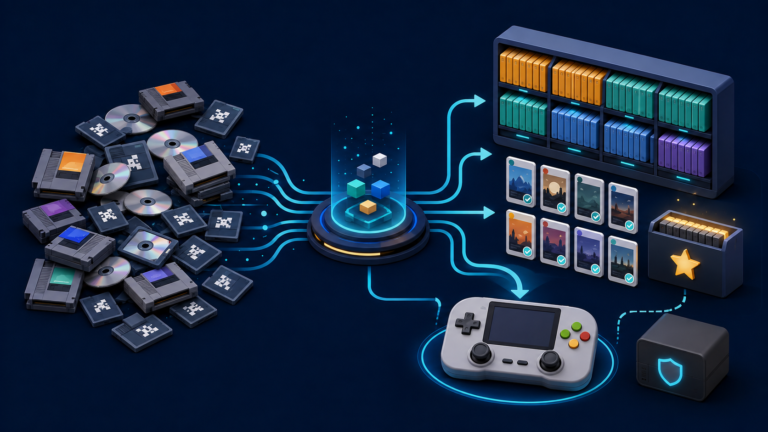
- Ask for a system and game list. Large totals can include duplicates and regional variants.
- Look for game-specific demonstrations. Menu footage and one easy game are not enough.
- Check the seller and return policy. Marketplace sellers can change while the page remains active.
- Verify controller and power details. Weak power, poor receivers, and input lag can ruin an otherwise playable game.
- Plan to back up the storage card. Included cards may contain both the operating system and game library.
For a fuller checklist, read How to Choose a Retro Game Stick: 10 Things to Check Before Buying. If you are considering a current 64GB model, our GD10 Game Stick review shows how to separate confirmed specifications from seller claims.
Final verdict
A budget retro game stick can be a convenient way to play older games on a television, but it should be purchased for its verified strengths. Eight-bit and most 16-bit systems are the safest expectations. PlayStation 1 is often practical. Nintendo 64, Dreamcast, PSP, DS, and Saturn require game-by-game verification. PS2, GameCube, and Wii claims deserve strong evidence.
Buy based on disclosed hardware, credible testing, and the systems you actually plan to use—not the number printed on the box. If you accept the uncertainty of a low-cost plug-and-play option, you can check the current GD10 Game Stick listing on Amazon Brazil as one example, then compare its seller, price, return policy, and specifications with better-documented alternatives.